Install on VMware vSphere
Watch the whole installation
This video goes through every step of this page: deploying the OVA, setting the appliance, connecting the vCenter and configuring NetFlow on the Distributed vSwitches.
Before you start
You need:
- the DC Netscope OVA, downloaded from easyvirt.com,
- a vCenter account DC Netscope will read the inventory with. A read-only account is enough and recommended,
- Distributed vSwitches carrying the traffic you want to see: standard vSwitches cannot export NetFlow,
- an IP address for DC Netscope, or a DHCP network,
- these network openings:
| Flow | From | To | Port |
|---|---|---|---|
| Web interface | Your users | DC Netscope | 443/tcp |
| Inventory | DC Netscope | vCenter | 443/tcp |
| NetFlow | ESXi hosts (Distributed vSwitches) | DC Netscope | 9000/udp |
Deploy the OVA
In the vSphere Client, right-click the cluster or the host that will run DC Netscope, choose
Deploy OVF Template... and select the OVA file. Follow the wizard: name, compute resource, storage and network.
The Customize template page of the wizard holds the settings of the appliance, described in the next step.
Set the network and the administrator account
On the Customize template page of the wizard:
-
Network: choose
dhcp, orstaticand fill the IP address, the netmask, the gateway and the DNS server. The static fields are ignored indhcpmode.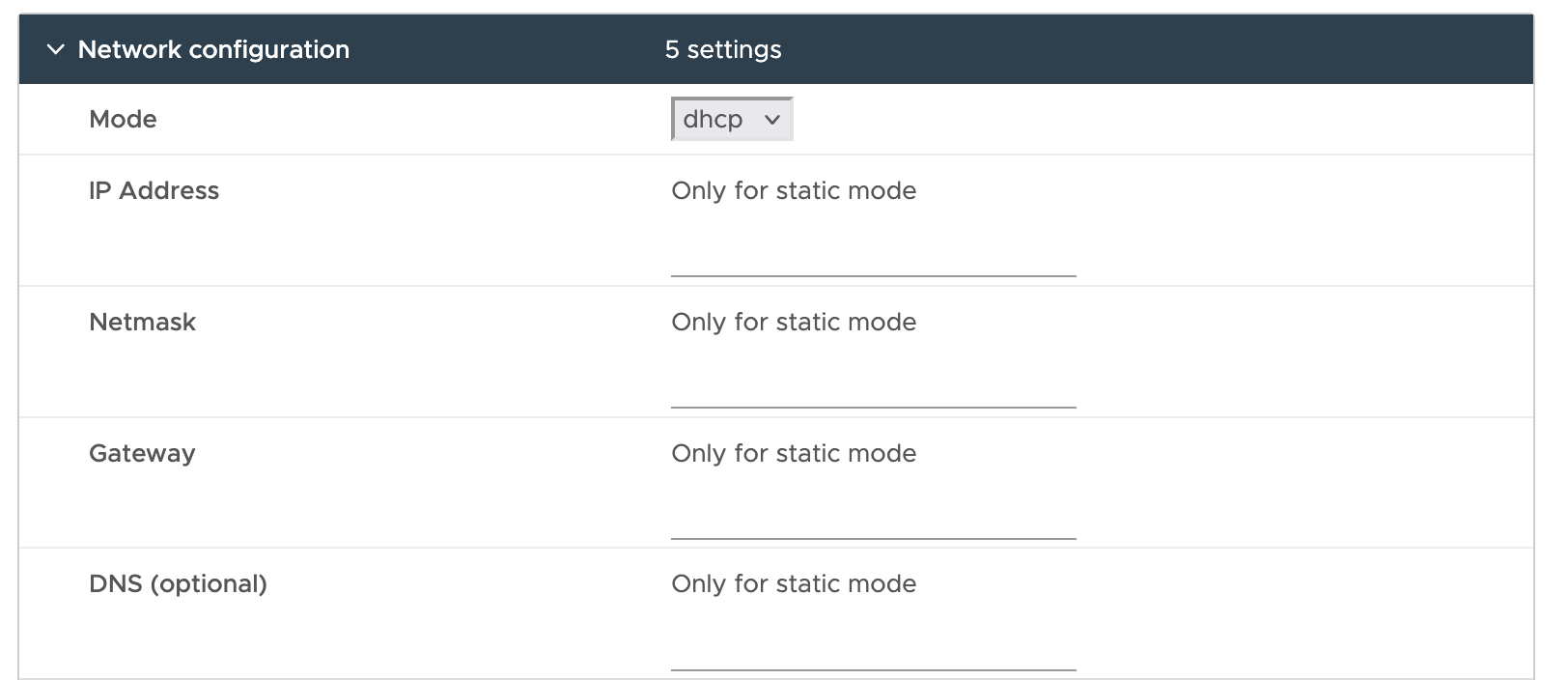
-
Administrator account: give the email and the password of the first administrator of DC Netscope. The password is also the one of the
rootaccount of the virtual machine.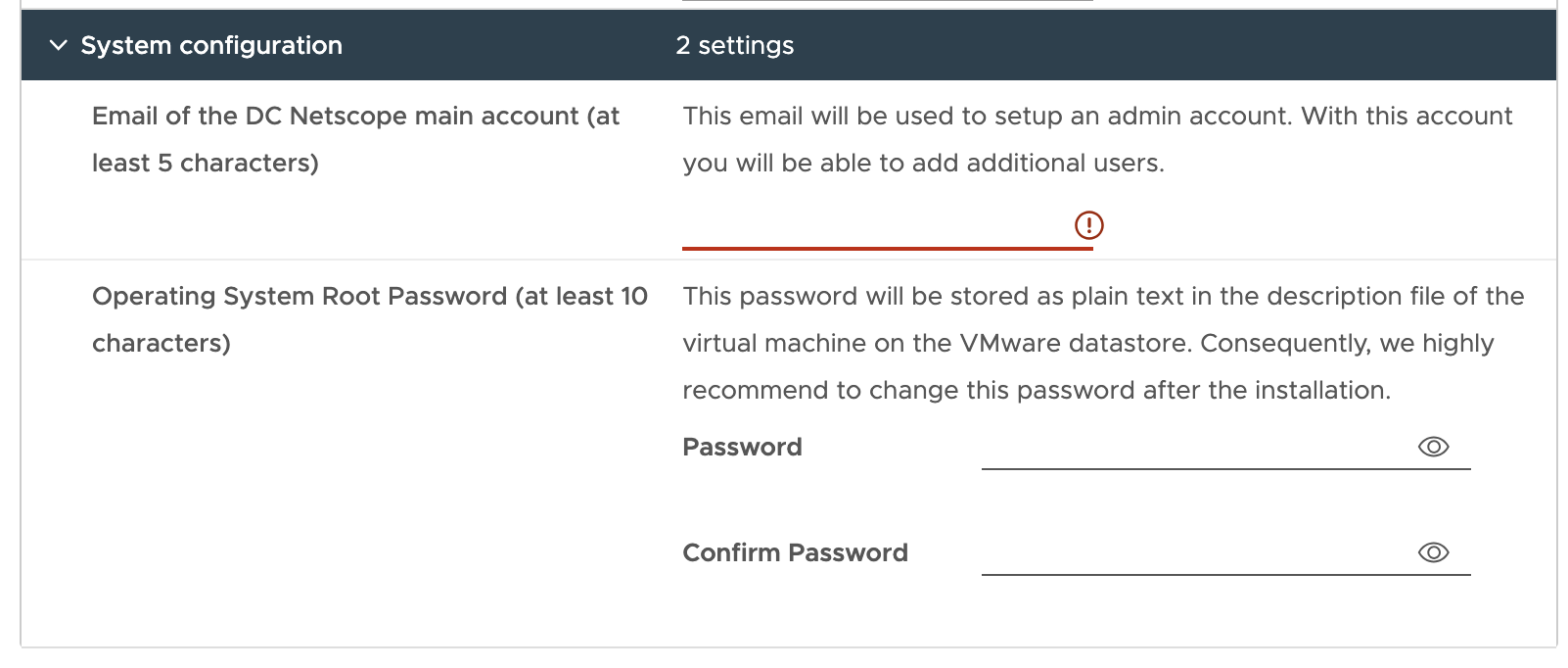
Finish the wizard and power on the virtual machine. After a few minutes, its console shows the address of
DC Netscope: open https://<DC Netscope address> in your browser and log in with the account you just defined.
Changing these settings later
Power off the virtual machine, then edit Configure > vApp Options in the vSphere Client.
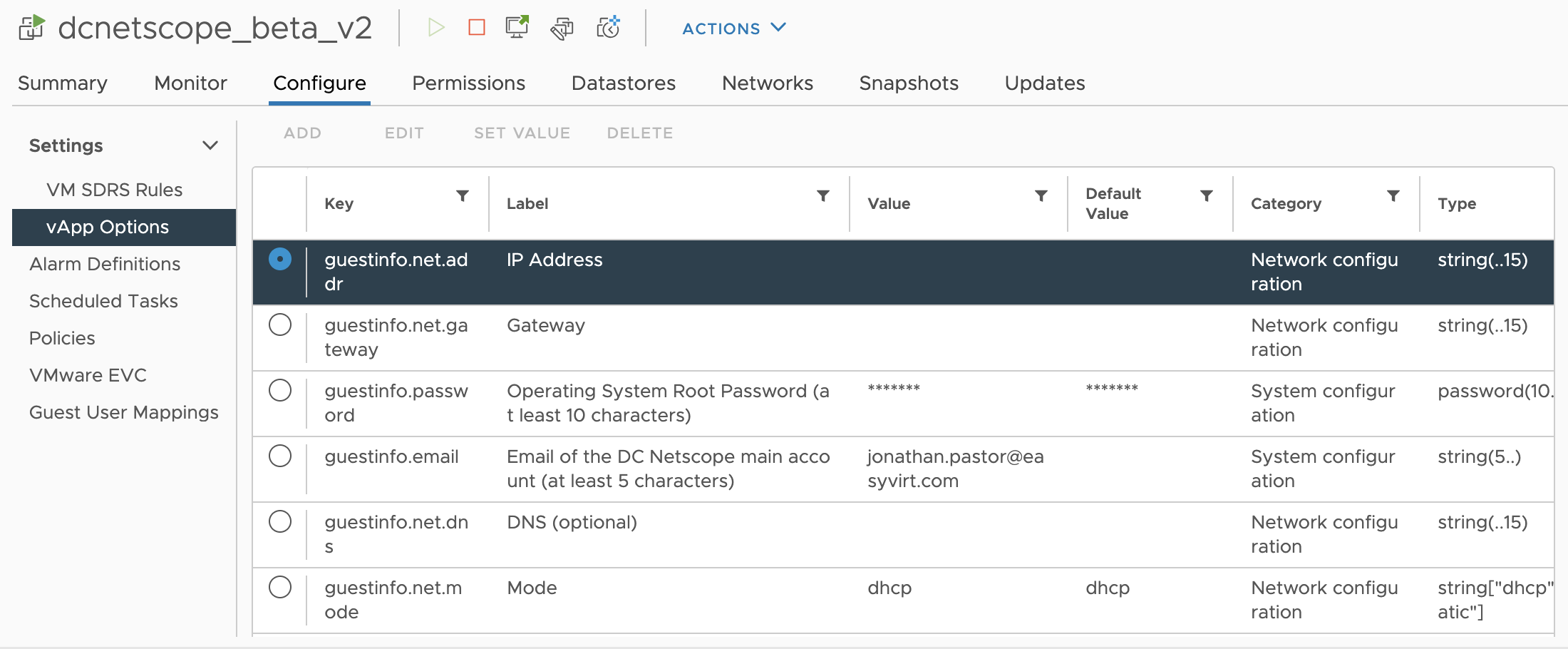
See Appliance settings for all the settings.
Connect your vCenter
DC Netscope reads the inventory of the vCenter to name the virtual machines and the hosts behind the addresses it sees in the flows.
-
Open the administration interface, and go to the
Servicestab.
-
In
Connected infrastructures, choosevCenter, type the address of the vCenter, the user and the password, and clickAdd a new connector.
-
Check that the status of the vCenter is green.

Repeat for every vCenter of your infrastructure.
Send the flows of the Distributed vSwitches
Each Distributed vSwitch exports its flows, and each of its port groups must have NetFlow enabled.
-
In the vSphere Client, open
Networking, right-click the Distributed vSwitch and chooseSettings>Edit NetFlow.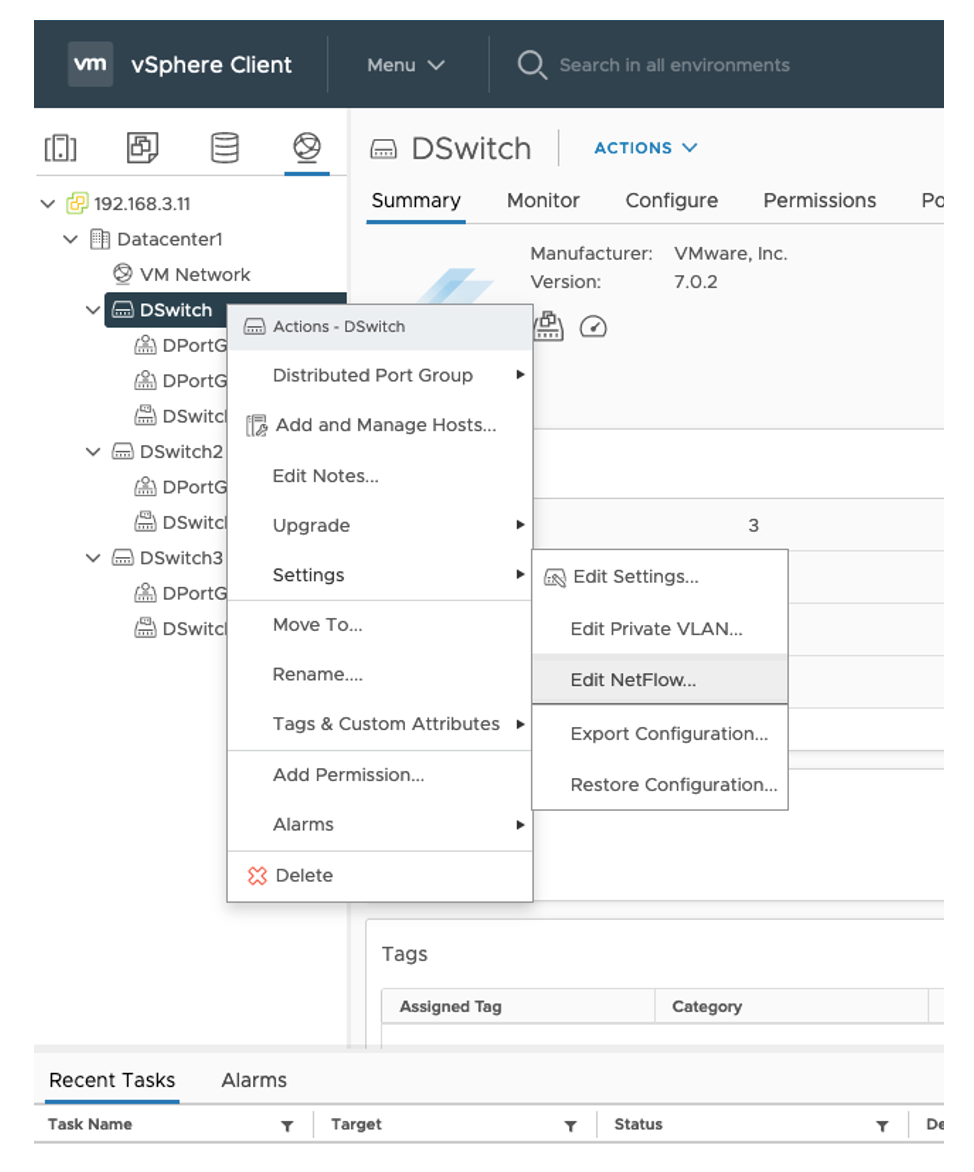
-
Set the
Collector IP addressto the address of DC Netscope and theCollector portto9000.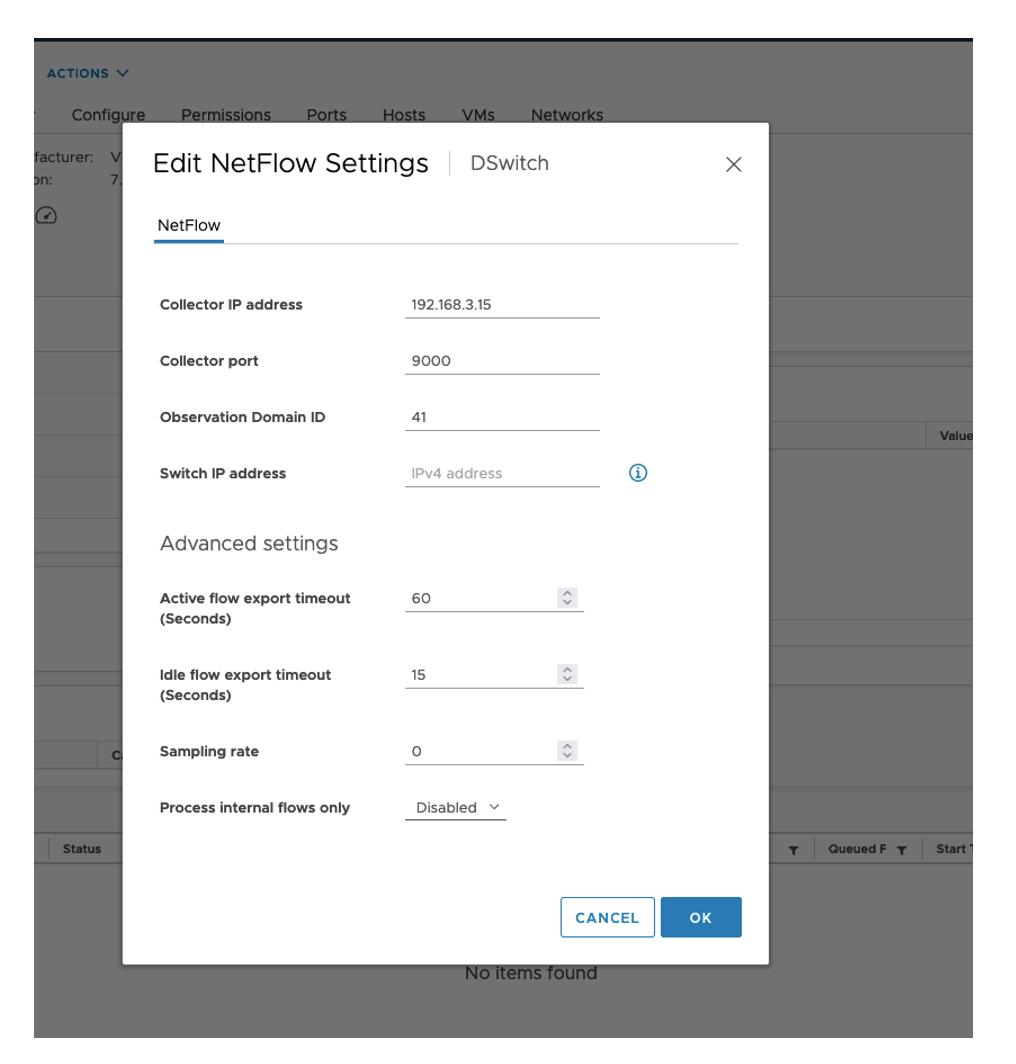
-
For each port group of the switch: right-click it, choose
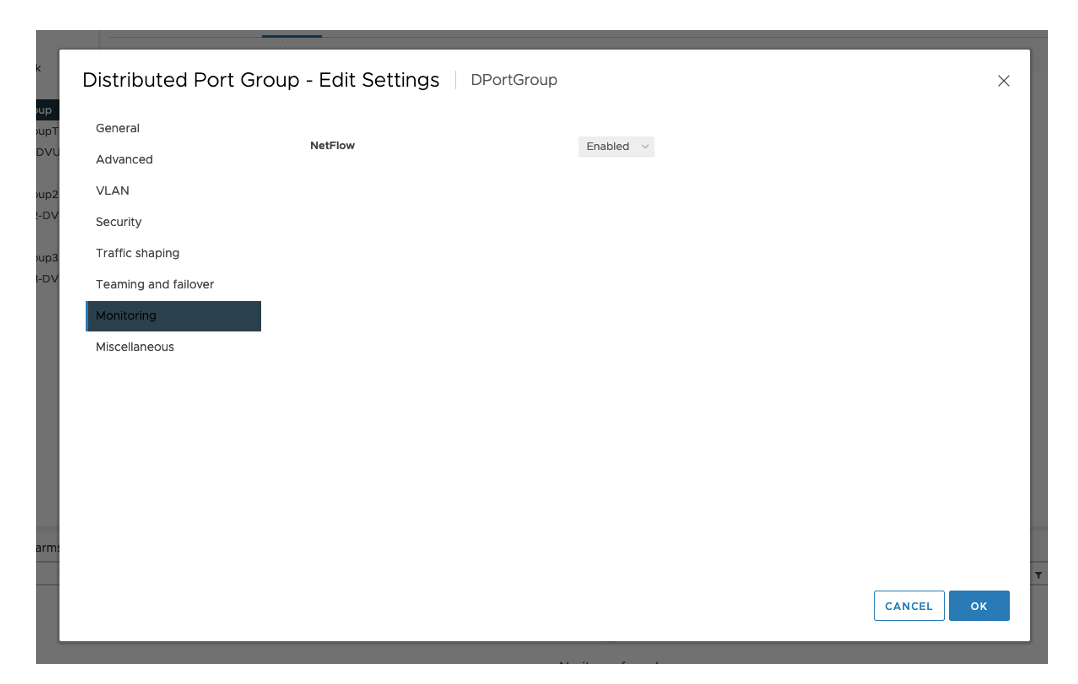
Edit Settings, thenMonitoring, and setNetFlowtoEnabled.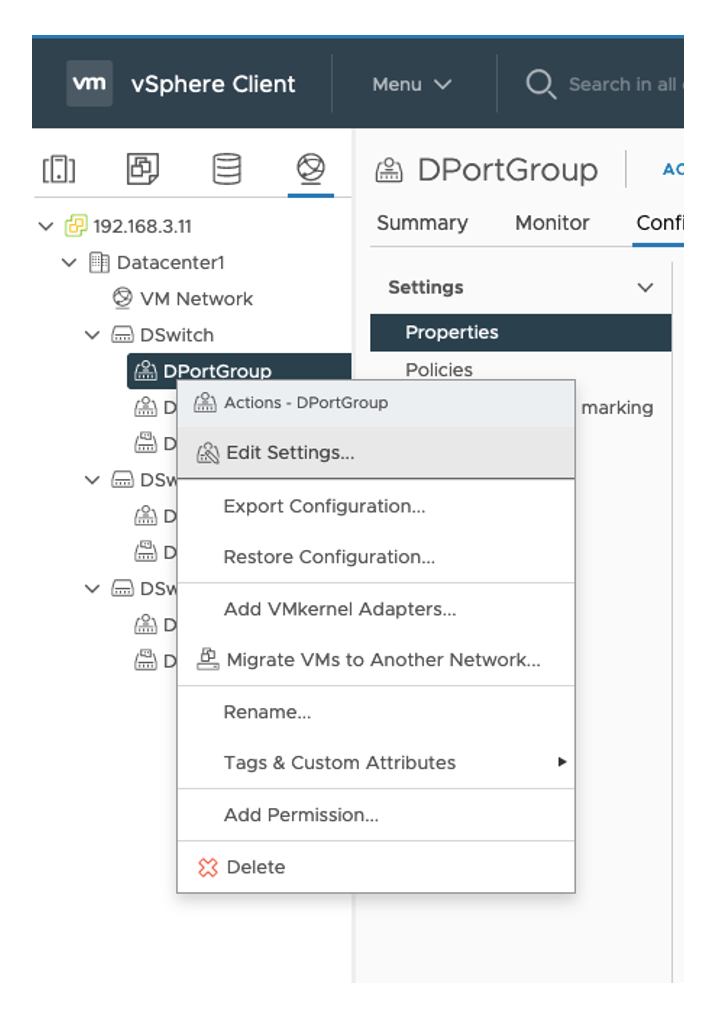
Note
A port group that does not have NetFlow enabled sends nothing: the virtual machines connected to it will be missing from DC Netscope.
Check that the flows arrive
Open the Dashboard. Within a few minutes, the collect summary shows the traffic received from the Distributed vSwitches, and the flows of your virtual machines appear with their names.

Nothing shows up? Check that 9000/udp is open from the ESXi hosts to DC Netscope, that NetFlow is enabled on the
port groups, and have a look at the troubleshooting page.
Next steps
- Activate your license: a 15 days trial license is active from the installation.
- Manage the users, or connect your Active Directory.
- Group your applications to read the flows between them.