Flows Descriptions
The Flows Descriptions view lets you describe the network flows you expect in your infrastructure: what they are for, whether they are authorized, the risk they carry and the kind of data they transport. DC Netscope then compares these descriptions with the flows it observed, and tells you which flows are described and which are not. It is the starting point to build and maintain an inventory of the flows of your information system, as required by regulations such as NIS2.
Open it with the Flows descriptions entry of the left menu. Like the other views, it works on the time period
and the resources selected in the top bar.
Overview
The top of the view summarizes how well your descriptions cover the observed flows:
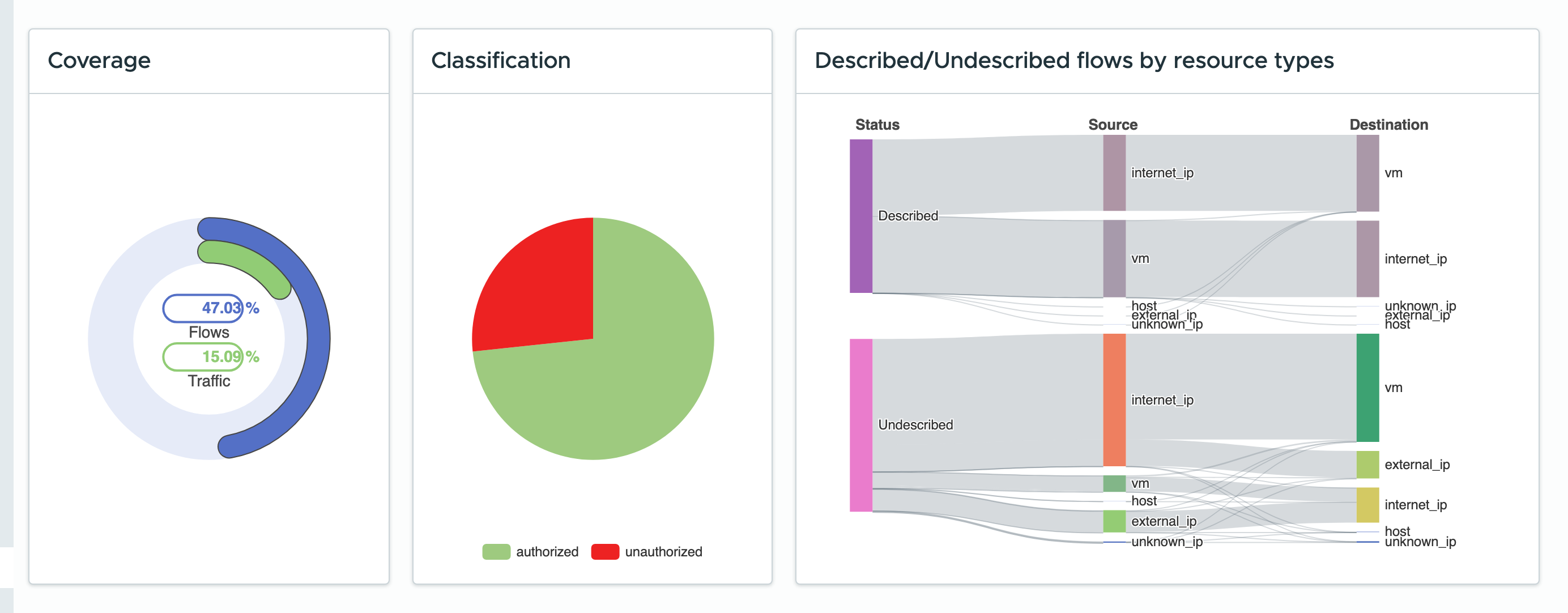
Coverageshows the share of the observed flows that match at least one description, counted in number of flows (Flows) and in exchanged bytes (Traffic).Classificationsplits the described flows between theauthorizedand theunauthorizedones. Click a slice to list its flows.Described/Undescribed flows by resource typesshows, for the described and the undescribed flows, the kinds of their sources and of their destinations (vm,host,internet_ip,external_ip,unknown_ip...). Click a node or a link to list the flows it stands for.
These charts are updated as soon as a description changes, before you even save it: you can check the effect of a change right away.
Flows descriptions list
Below the charts, the Flows Descriptions tab lists your descriptions:
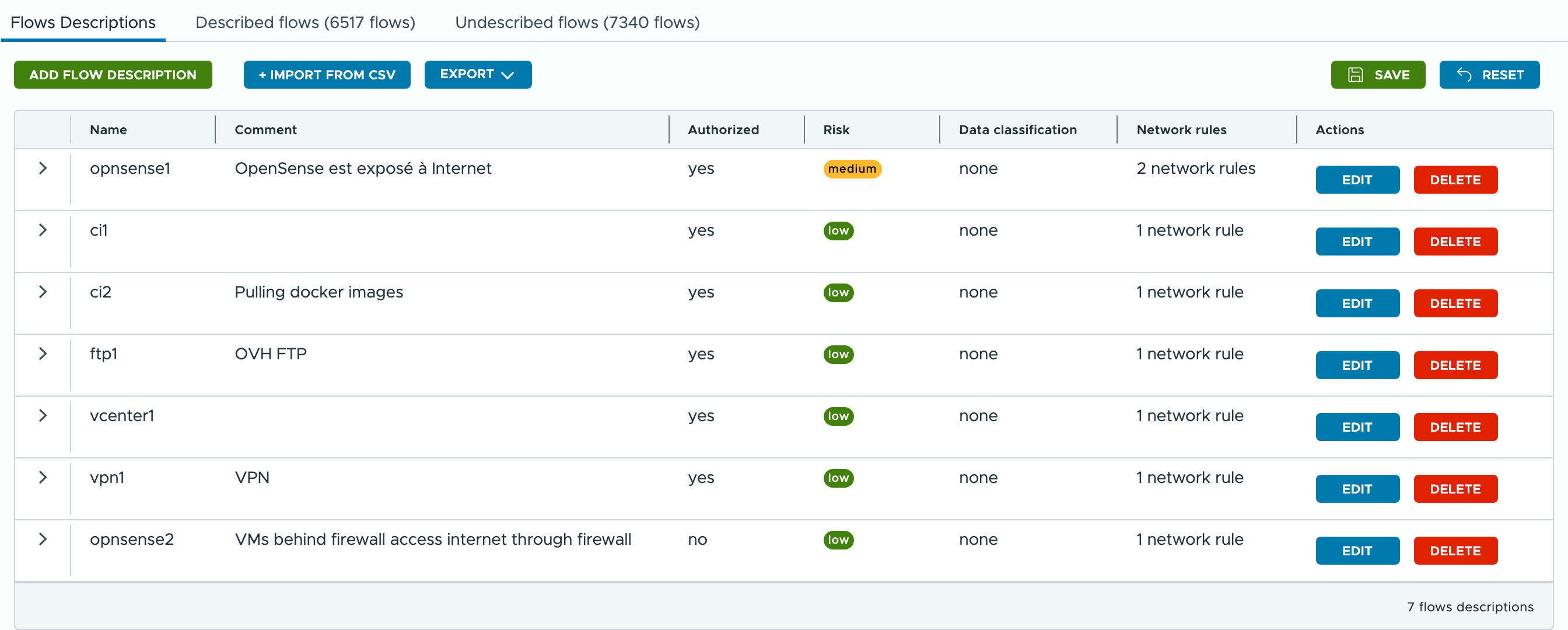
Each description shows its name, its comment, whether it is authorized, its risk, its data classifications and the number of its network rules. The buttons above the list let you:
Add flow description: create a new description, which opens its edition window,Import from YAML: replace the descriptions with the ones of a YAML file (see Saving and importing the descriptions),Save as YAML: download the descriptions as a YAML file,Save: write the descriptions to DC Netscope,Reset: reload the descriptions as they were last saved, discarding your changes.
Note
Adding, editing or deleting a description or a network rule is only applied locally until you click
Save. The charts and the flows tabs already take your changes into account, but they are lost if you
leave the view or click Reset without saving.
Editing a description
Click the Edit button of a description to change its general information:
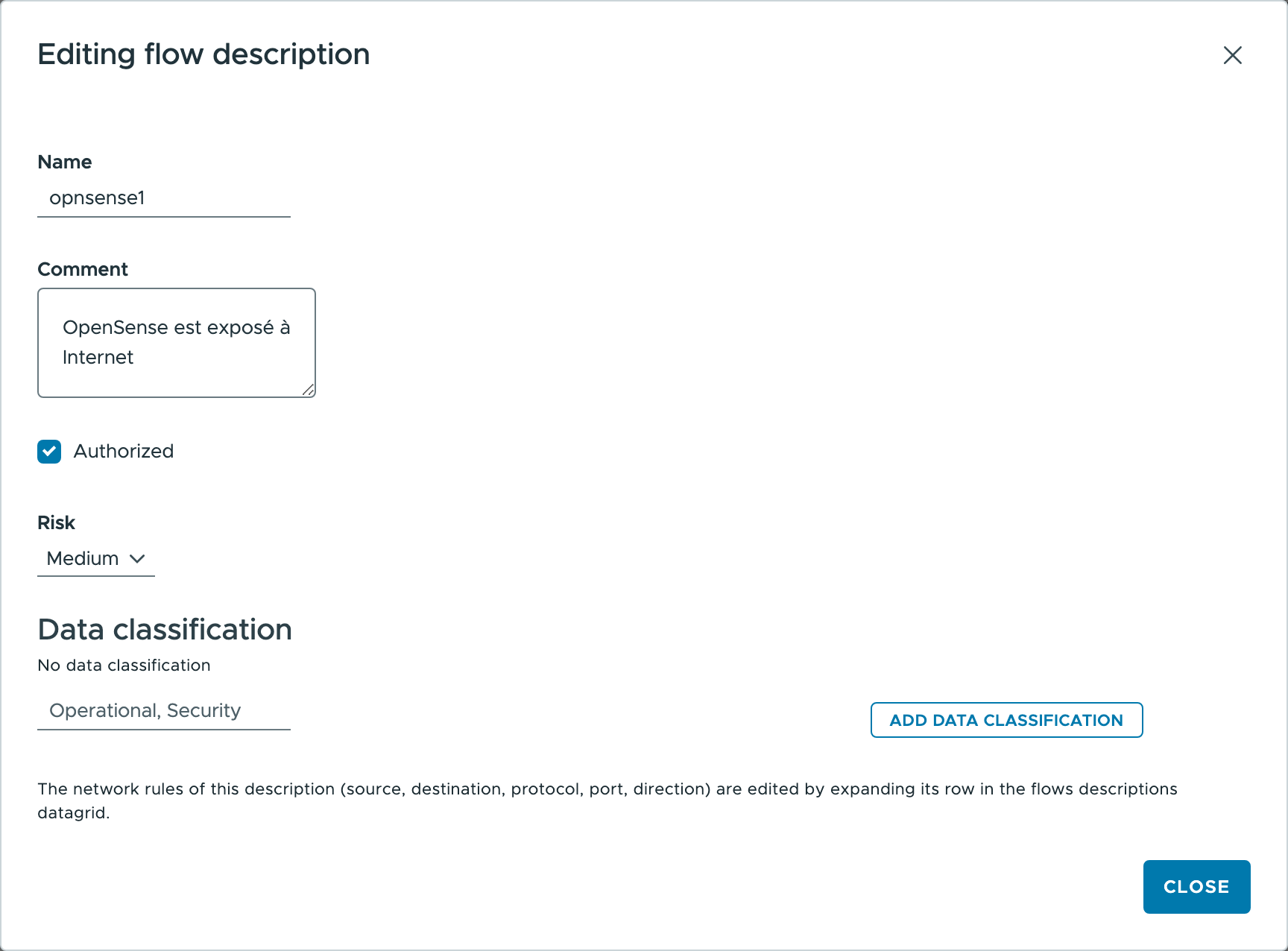
Name: a short name identifying the description.Comment: a free text explaining what the flows are for.Authorized: whether these flows are allowed. The flows matched by a description that is not authorized are counted asunauthorizedin theClassificationchart, even when another description authorizes them.Risk:Low,MediumorCritical, shown as a colored badge in the list.Data classification: the kinds of data these flows transport. Type a label and clickAdd data classification:Operational,Security eventsandPersonal dataare suggested, but any label can be used. Click the cross of a label to remove it.
Click the Delete button of a description to remove it.
Network rules
The network rules of a description define which flows it matches. Unfold a description with the arrow at the beginning of its row to see them:

A description matches a flow as soon as one of its network rules matches it. A network rule matches a flow when all of its criteria match: its source, its destination, its protocol and its port.
Click Add network rule to add a rule, and the Edit and Delete buttons of a rule to change or remove it.
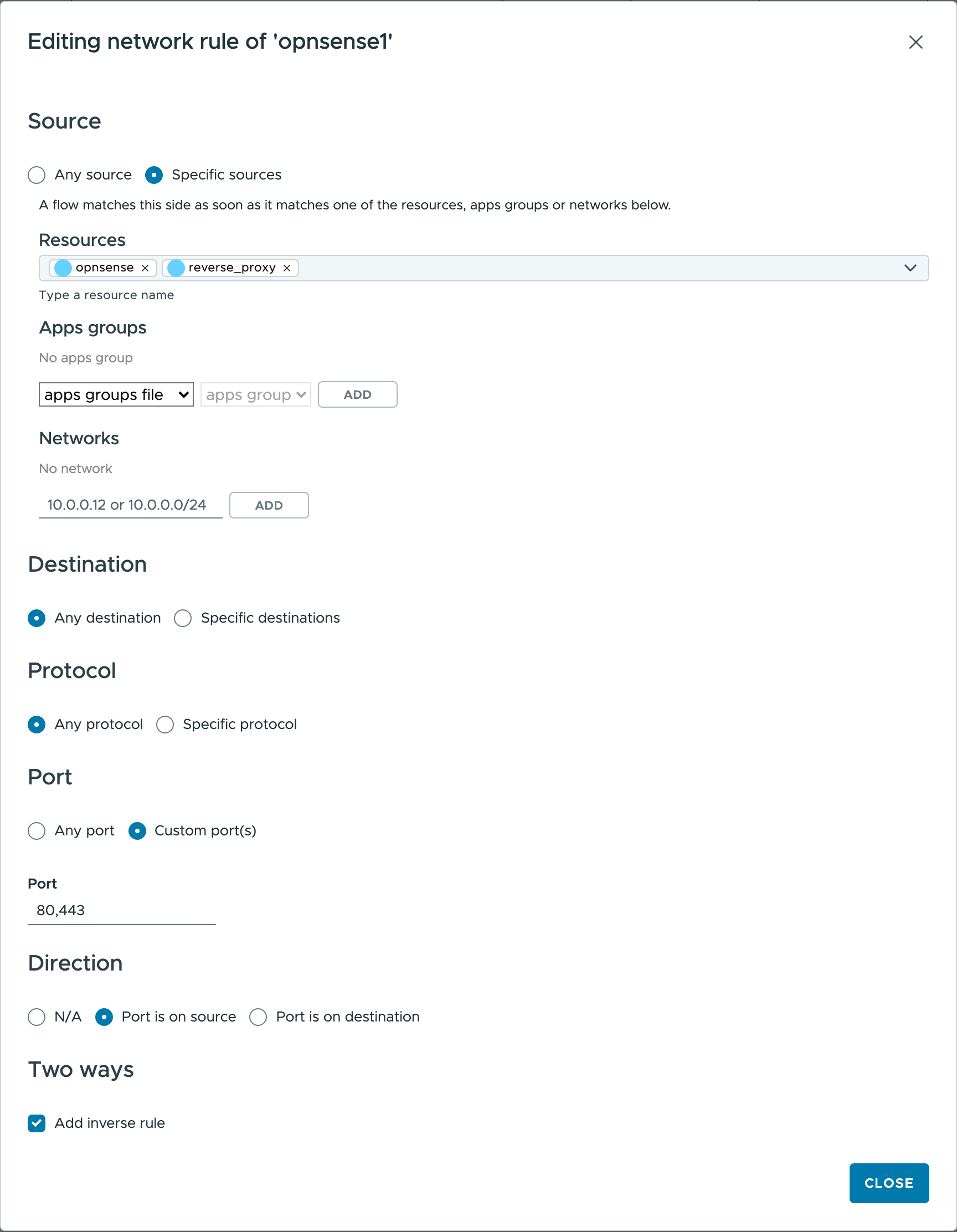
Editing a network rule
Source and destination
Each side of the rule is either:
Any source/Any destination: every flow matches this side,Specific sources/Specific destinations: a flow matches this side as soon as its end matches one of the items listed below. The items can be freely mixed:- Resources: the virtual machines of your infrastructure. Type part of a name to find them.
- Apps groups: pick an apps groups file, then one of its apps groups, and click
Add. The side then matches every member of the apps group. - Networks: type a single IP address, such as
10.0.0.12, or a network in CIDR notation, such as10.0.0.0/24, and clickAdd.
A side set to Specific but listing nothing matches no flow at all: it is shown as a red nothing badge in the
list of rules.
In the list of rules, an apps group is shown with the file it belongs to and the number of resources it
currently holds, for instance group: web (custom) · 12.
Note
A rule does not copy the members of an apps group: it follows the group. When you add members to the group or remove some, or when its name patterns match newly created virtual machines, the rule covers them automatically. If the apps group is deleted or renamed, it is shown in red and matches no flow until you fix the rule.
Protocol
Any protocol matches every flow. Specific protocol only matches the flows whose protocol is exactly the
value you type, as it is shown in the flows views.
Port
Any port matches every flow. Custom port(s) only matches the flows using one of the listed ports. Separate
the ports with commas and write ranges with a dash, for instance 80,443 or 8000-8080.
Direction
The direction tells on which side of the flow the port is expected, which matters for a server port:
N/A: the side is not checked,Port is on source: the port belongs to the source of the flow,Port is on destination: the port belongs to the destination of the flow, the usual case of a client reaching a server.
The direction is only taken into account when the rule uses custom ports.
Two ways
Add inverse rule makes the rule match the flows going the other way as well, as if a second rule swapped its
source and its destination.
Warning
A network rule whose source, destination, protocol and port are all set to Any matches no flow, rather
than every flow. This is also the case of the rule created with a new description: it covers nothing until
you restrict at least one of its criteria.
Checking the described and undescribed flows
The Described flows and Undescribed flows tabs list the observed flows that match at least one description,
and the ones that match none. Their titles give the number of flows in each.
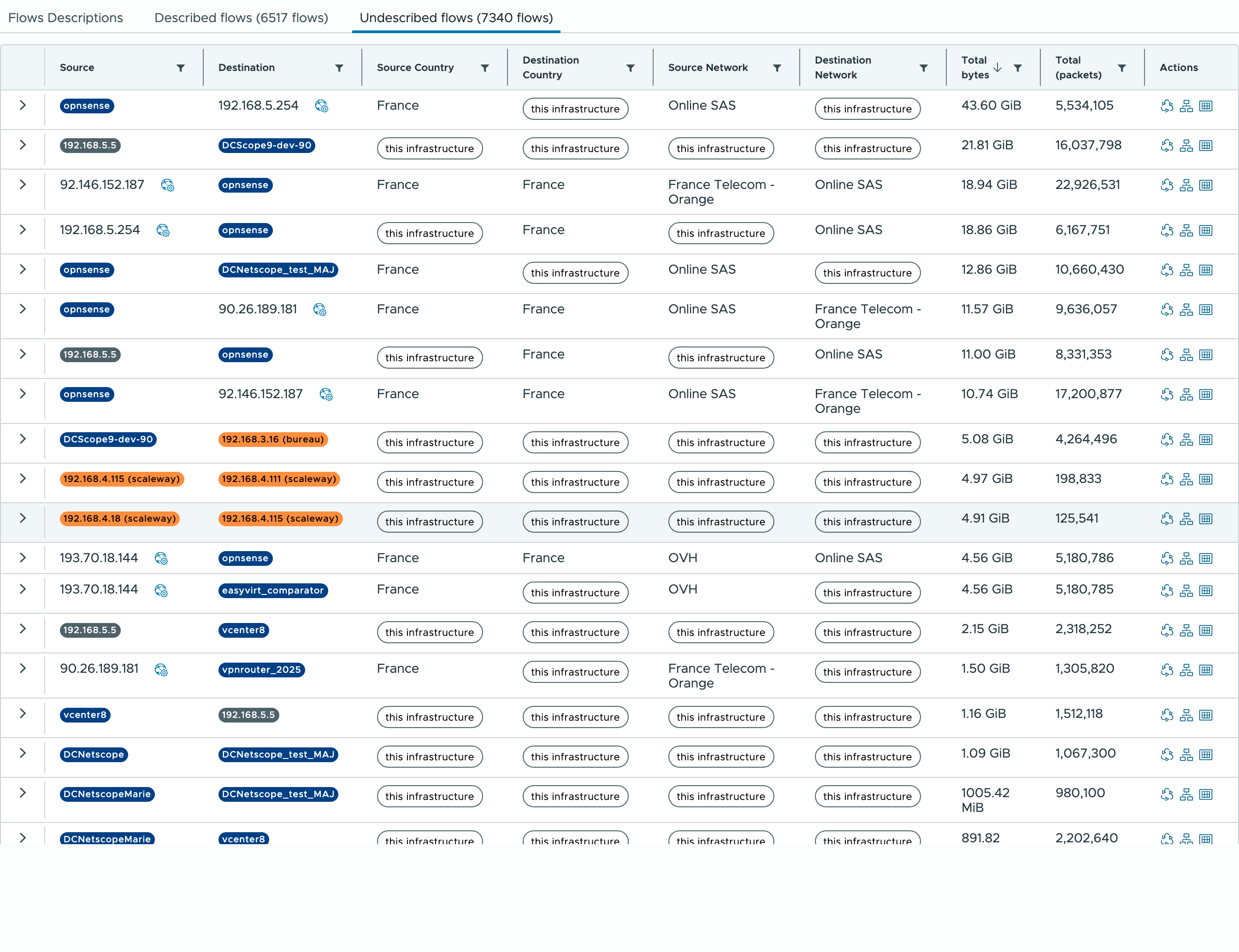
They work like the other flows lists of DC Netscope: you can sort and filter them, unfold a flow to see its
details, and export them as CSV. The Undescribed flows tab is the one to go through to complete your
descriptions: its largest flows are the first ones worth describing.
Saving and importing the descriptions
Save as YAML downloads the descriptions as a file named flows_descriptions.yaml, and Import from YAML loads
such a file back. This is the way to back the descriptions up, or to copy them from one DC Netscope to another.
Importing a file replaces the descriptions shown in the list. As for any other change, they are only written to
DC Netscope once you click Save, and Reset brings the previous ones back.
The file holds the descriptions under a flowsDescriptions key, each one with its network rules:
flowsDescriptions:
  - name: Web frontends to databases
    comment: Only the frontends may reach the databases
    authorized: true
    risk: medium            # low, medium or critical
    dataClassifications:
      - Personal data
    networkRules:
      - sourceMode: specific  # any or specific
        sources:
          - kind: apps_group  # an apps group, with its file
            name: web
            file: custom
          - kind: network     # an address or a network in CIDR notation
            address: 10.0.0.0/8
        destinationMode: specific
        destinations:
          - kind: resource    # a resource, with its uuid
            uuid: vm-1234
            name: db-01
        protocolMode: specific  # any or specific
        protocol: tcp
        portMode: custom        # any or custom
        port: 5432, 6000-6010
        direction: '0'          # '1' port on the source, '0' on the destination, n/a otherwise
        twoWays: false          # true when the rule also matches the inverse flows