Time period and filters
Every view of DC Netscope shows the flows of a period of time and, optionally, of a selection of resources. Both are set in the top bar, and stay the same as you go from a view to another.

From left to right, the top bar shows the current view, the time period, and the filter field.
Time period
Click the time period (Last 24 hours by default) to choose another one.
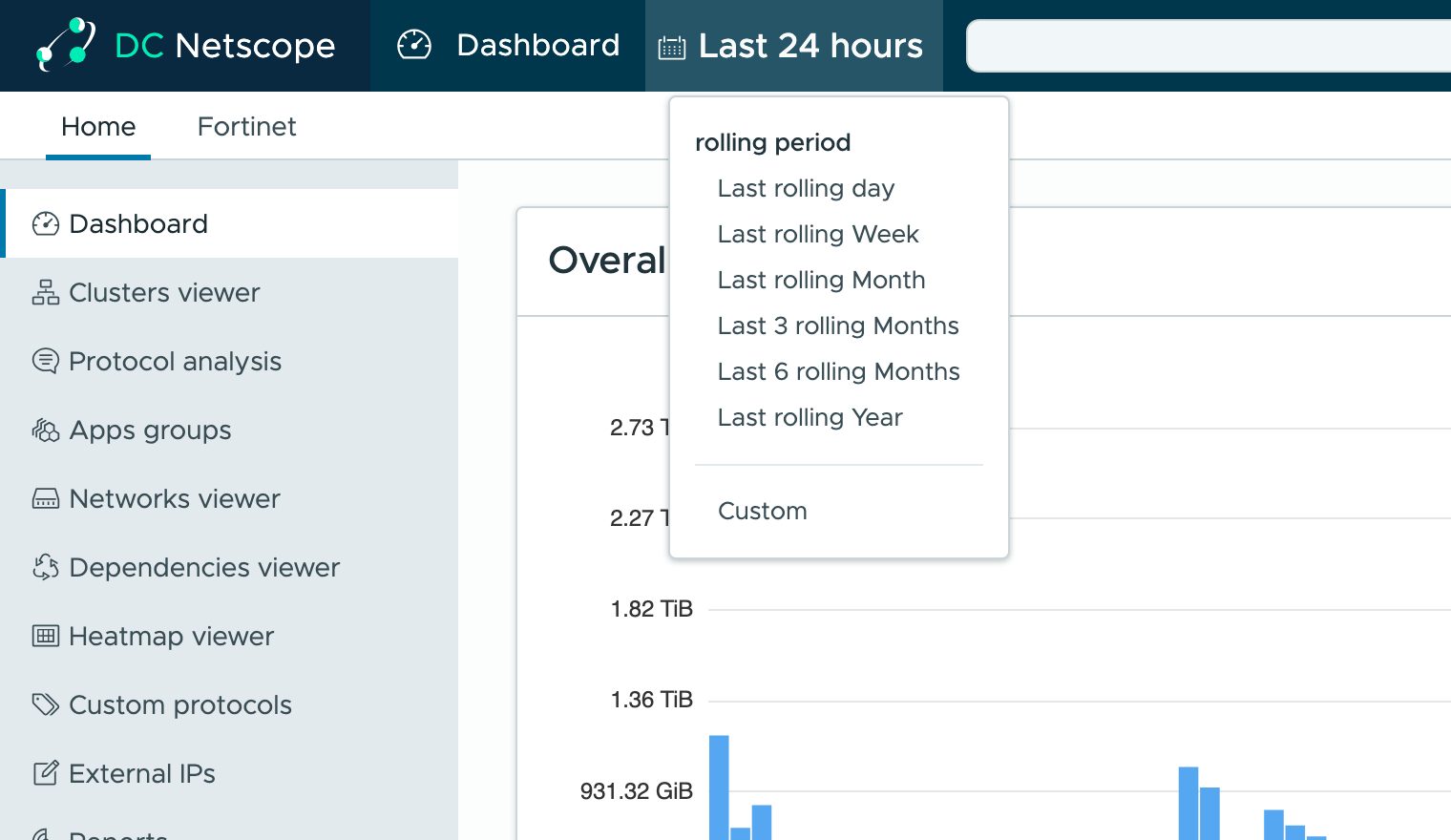
Rolling periods end with the latest flows DC Netscope received, and move with them: Last rolling day is the last
24 hours, not the current calendar day. The rolling periods are:
Last rolling dayLast rolling WeekLast rolling MonthLast 3 rolling MonthsLast 6 rolling MonthsLast rolling Year
The longest periods hold a lot of flows: on large infrastructures, they take longer to load.
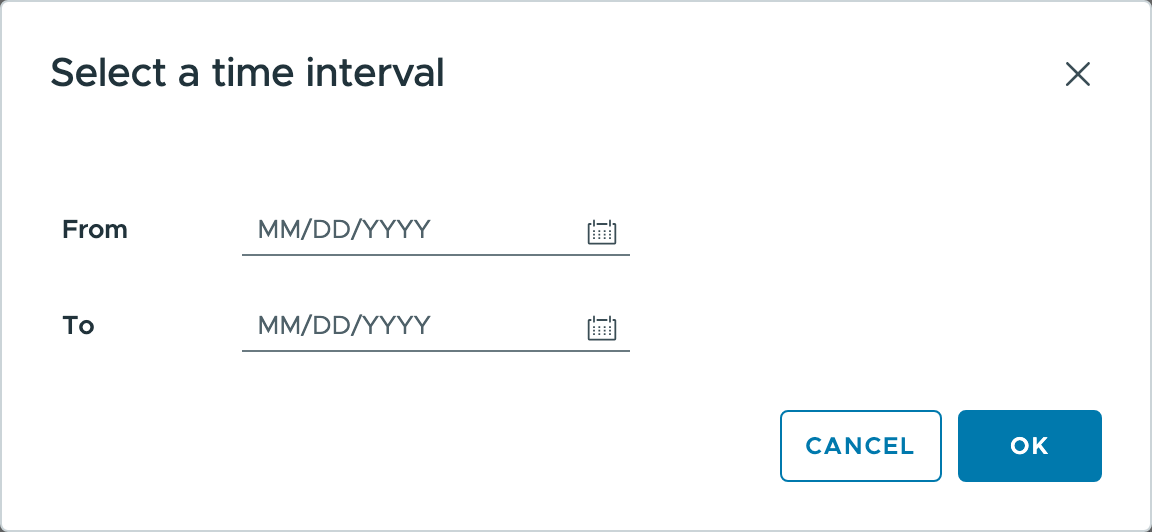
Custom sets the start (From) and the end (To) of the period: pick both dates, then click OK.
Selecting days from the dashboard
On the Overall traffic chart of the Dashboard, click the bar of a day, or drag over
several bars, to select these days as a custom period.
Filters
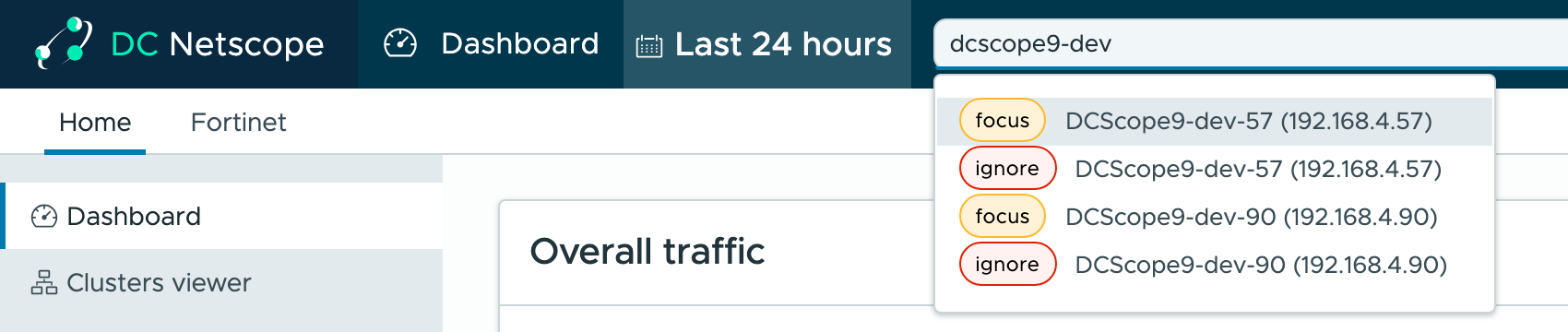
Type in the filter field to find what to filter on: a resource by its name or its address, a protocol, or an apps
group. The list proposes, for each resource that matches, a focus and an ignore filter.
| Filter | Keeps |
|---|---|
focus a resource |
the flows of the resource, as a source or as a destination |
ignore a resource |
the flows the resource has no part in |
protocol |
the flows of the protocol |
appgroup |
the flows of the members of the apps group, shown with its file, such as web-* (by_name) |
To filter on an address or a network that DC Netscope does not know, type it in full, such as 10.0.0.12 or
10.0.0.0/24: when nothing matches, the field proposes to focus on it.
Remove a filter with the × of its label. The views are updated after each change.
Combining filters
Several filters of the same kind add up: focus on two resources shows the flows of either of them, two protocol
filters the flows of either protocol. Filters of different kinds narrow each other: focus on a resource and
protocol https show the https flows of this resource. Each ignore filter removes the flows of its resource from
what the other filters show.
| Filters | Show the flows |
|---|---|
focus A, focus B |
of A, or of B |
protocol https, protocol ssh |
in https, or in ssh |
focus A, protocol https |
of A, in https |
focus A, appgroup G |
between A and a member of G |
ignore A, ignore B |
of neither A nor B |
focus A, ignore B |
of A, except the ones with B |
Sharing a view
The address of the page holds the view, the time period and the filters: copy it to come back to the same view later, or to share it.
Datatables
Every chart of DC Netscope is built from flows you can list in a table:
- on the Dashboard, the
Network flows datagridat the bottom of the page lists the flows of the period, and clicking a slice of a chart lists its flows in a window, - in the flows views, the
Flows Datatabletab lists the flows of the view.
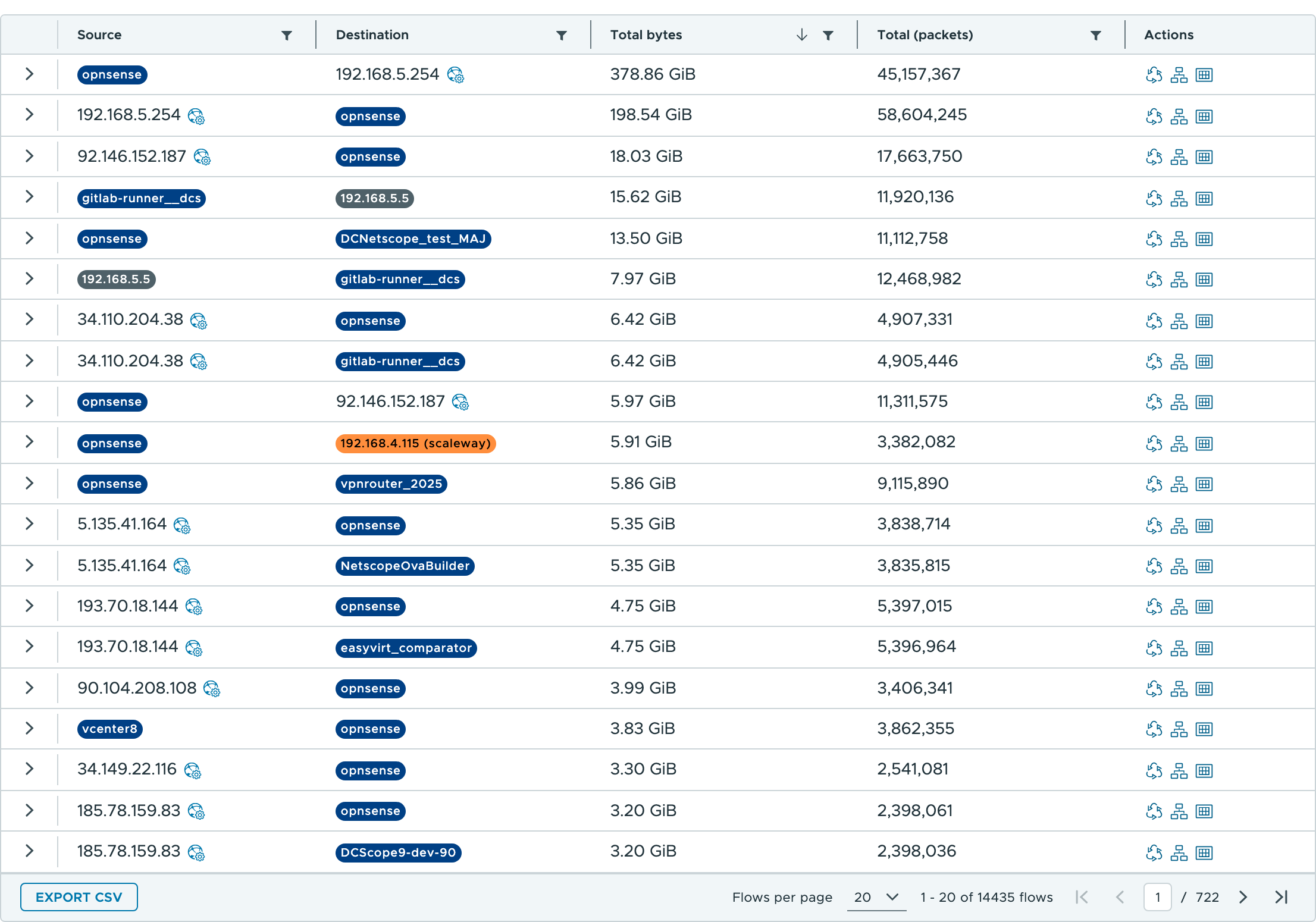
In a datatable:
- the arrow at the beginning of a row unfolds the flow, with the ports it used,
- the icon next to an address looks up its domain name,
- the funnel of a column filters the rows on it, and its header sorts them,
Export CSVdownloads the flows as a CSV file, with or without the details of their ports (CSV file (ports details)).
The names of the resources come from the inventory of your platform. An address of an
external IP network shows the name of the network next to it, such as
192.168.4.115 (scaleway).
Opening a flow in another view
The icons at the end of a row open the flow, its source and its destination in another view, on the same period:
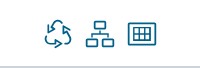
- the dependencies viewer,
- the clusters viewer,
- the heatmap viewer, which shows the traffic between the source and the destination day by day, or hour by hour.