External IPs
DC Netscope names the addresses it sees in the flows from the inventory of your virtualization platform: an address of a virtual machine or of a host shows up with its name. The other ones, those of your physical servers, network equipment, other sites or online services, show up as bare IP addresses.
The External IPs view lets you name them. Give a name to an address, or to a whole network, and DC Netscope ties the
flows of these addresses to it.
Open it with the External IPs entry of the left menu.
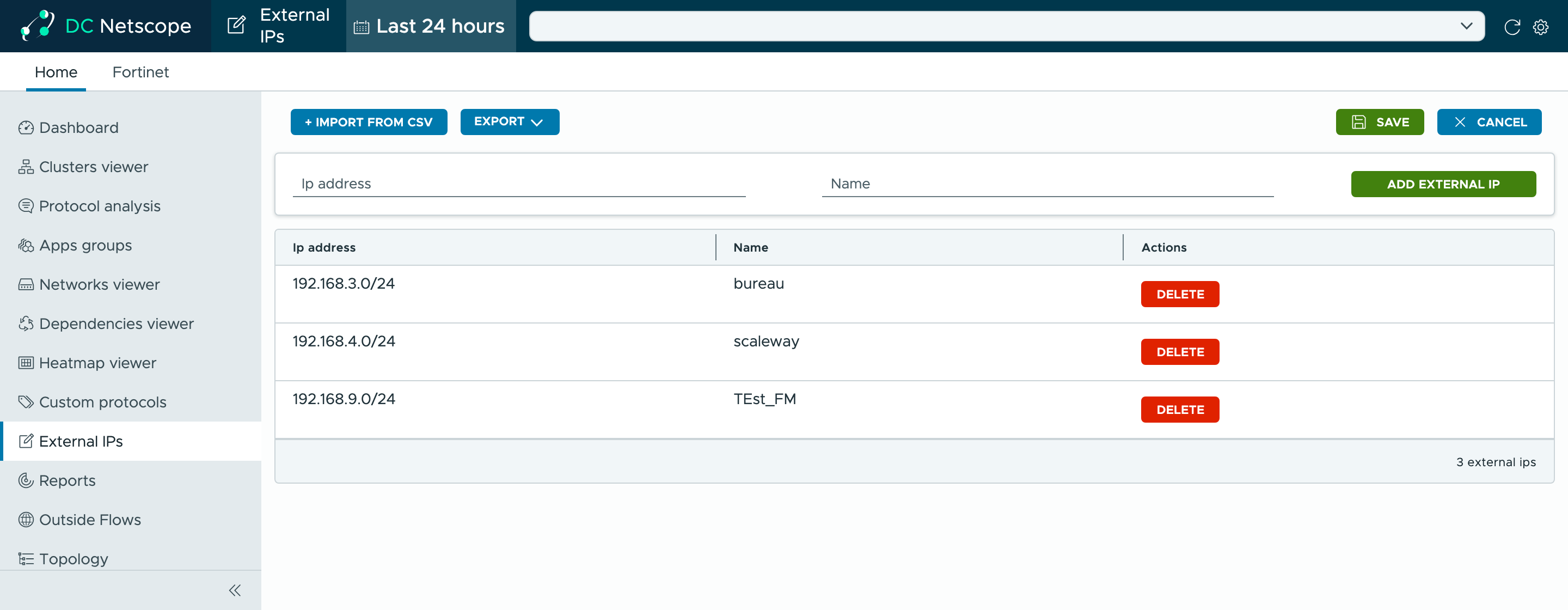
The view has three parts:
- the toolbar:
+ Import from CSVandExporton the left,SaveandCancelon the right, - the form to add an external IP,
- the list of the external IPs, with a
Deletebutton on each of them.
Note
Adding, importing or deleting external IPs only changes the list in your browser. Click Save to send it to DC
Netscope, or Cancel to discard your changes and reload the list as it was last saved.
Adding an external IP
Type the address and the name in the form, then click Add external IP.

- Address: a single IPv4 address (
192.168.3.254), a single IPv6 address (2001:db8::1), or a network in CIDR notation (10.20.0.0/16). A network stands for every address it holds. - Name: letters, digits and underscores only, such as
datacenter_borbackup_server.
An address or a name that does not follow these rules is not added, and a red icon shows up next to its field. Hover the icon to see the rules.

The external IP is added at the end of the list. Click Save to apply it.
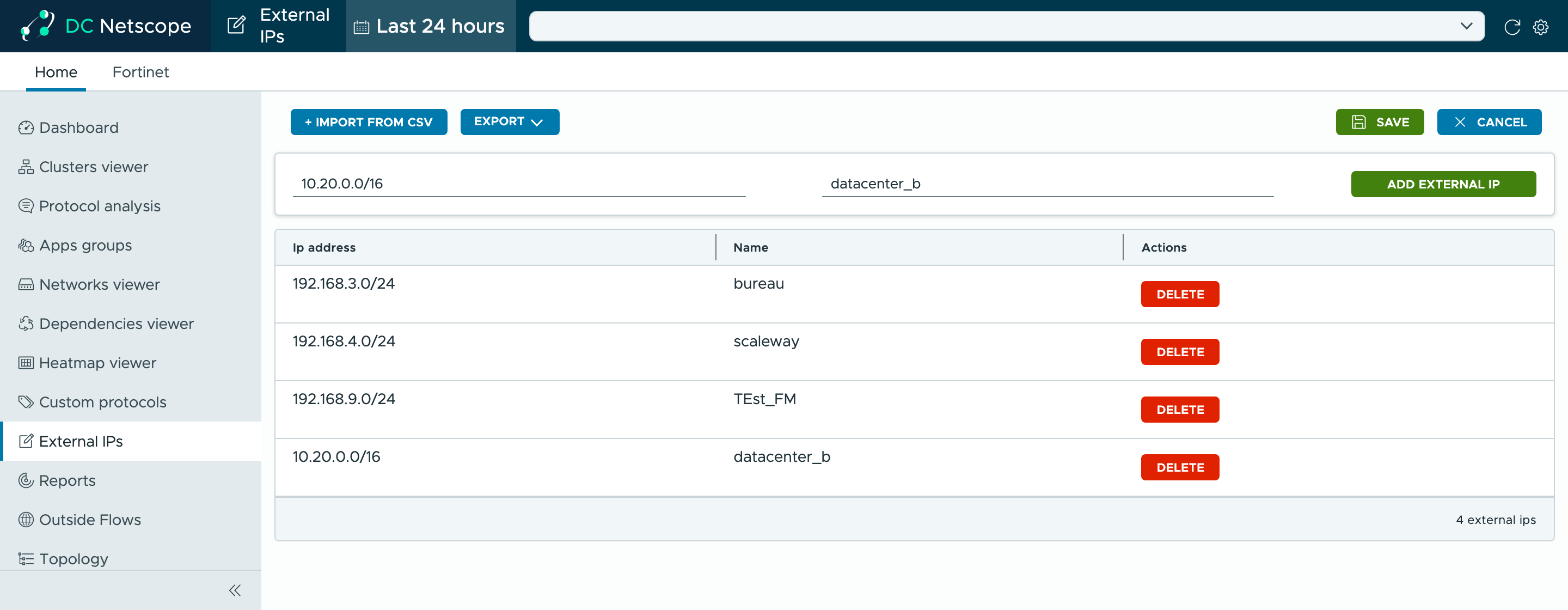
To remove an external IP, click its Delete button, then Save.
How DC Netscope uses them
When DC Netscope receives a flow whose address belongs to no resource of the inventory, it looks for the address in the external IPs:
- an external IP with this exact address,
- otherwise, an external IP whose network holds the address.
The flow is then tied to this external IP, of type external_ip, instead of an unknown address:
- the Dashboard counts these flows as inside your infrastructure,
- external IPs can be members of apps groups, and through them be used in the network rules of the flows descriptions. An external IP standing for a network brings all its addresses.
Note
The inventory comes first: an address of a virtual machine or of a host keeps its name, even when it belongs to the network of an external IP.
Warning
Saved external IPs apply to the flows received from then on, and to those of the last hour. The flows received before keep showing their bare addresses.
Importing from a CSV file
To add many external IPs at once, click + Import from CSV and choose a CSV file. The wizard lists the external IPs it
read from the file: check them, then click Finish.
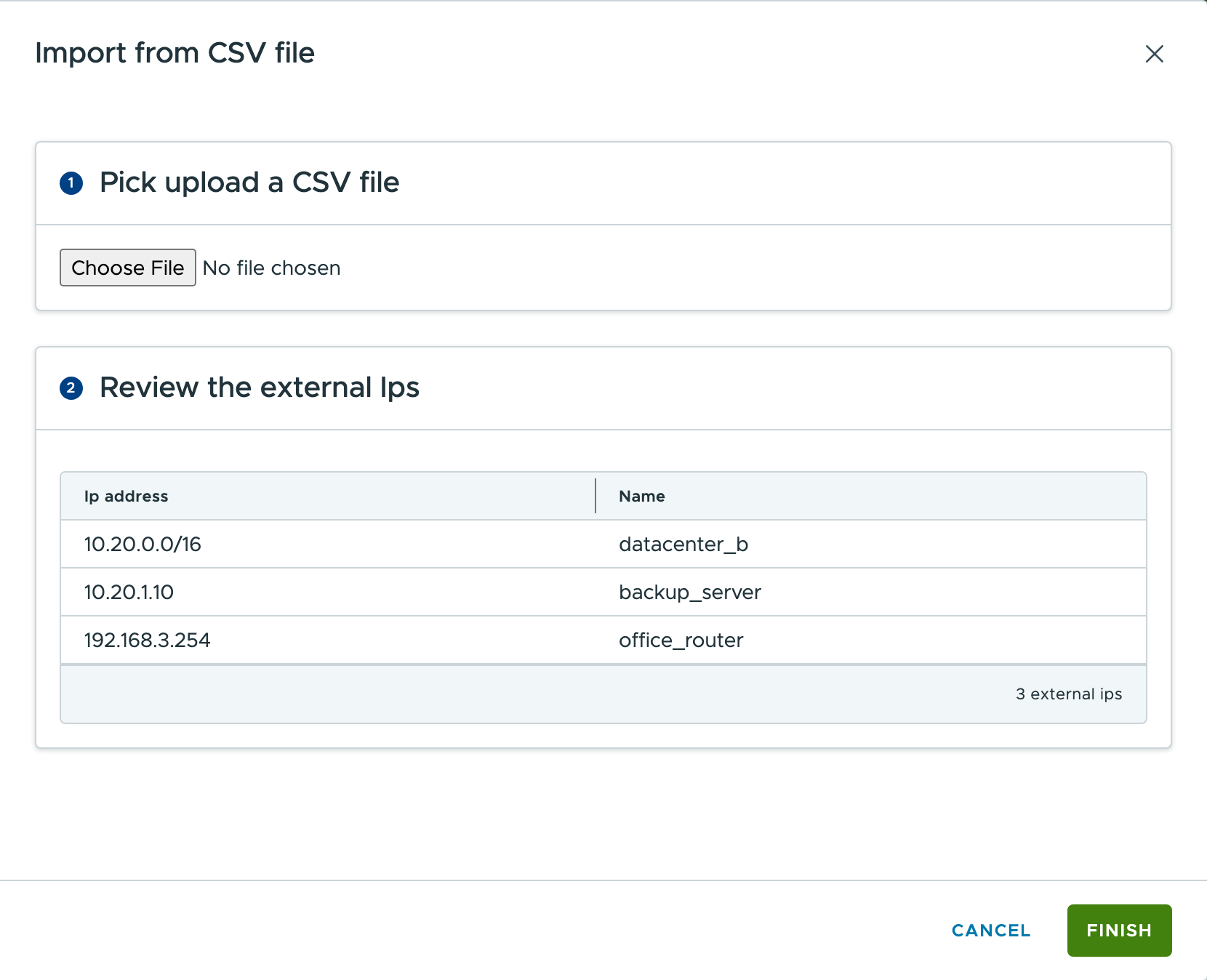
The file holds one external IP per line, its address then its name, separated by a comma or a semicolon. The first line is a header, and is skipped:
IpAddress,ResourceName
10.20.0.0/16,datacenter_b
10.20.1.10,backup_server
192.168.3.254,office_router
The import merges the file into the list:
- an address that is already in the list takes the name given by the file,
- the other addresses are added.
The import does not check the names: make sure they only use letters, digits and underscores. As for an addition, click
Save to apply the import.
Exporting to a CSV file
Click Export, choose the separator (comma or semi-colon), then click External ips. Your browser downloads the
list as netscope-external-ips.csv.
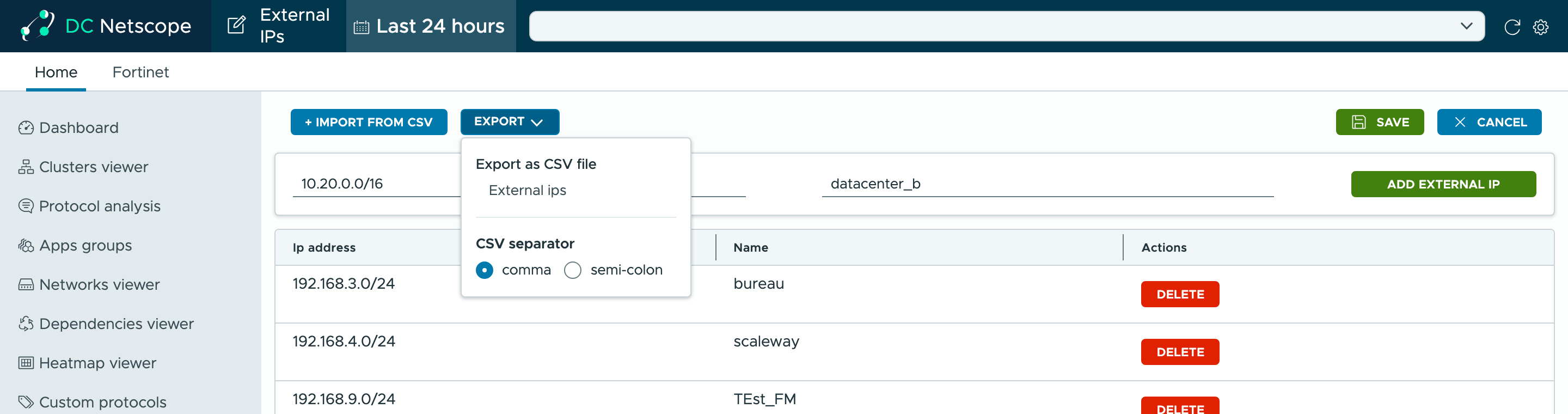
The exported file has the format the import reads: export the external IPs of a DC Netscope, edit them in a spreadsheet, and import them back, or into another DC Netscope.