Troubleshooting
Warning
Before trying to fix a DC Netscope VM, ensure that you have a backup of the VM or a backup of its data. If it is not the case, try to snapshot the VM. If possible, use snapshot that don't need to reboot/boot the VM (In VMware, there are snapshots that include the VM memory). Once you are sure that you will not lose data, you may try to fix the VM.
This page describes ways to diagnose issues with DC Netscope, and several ways to repair it. Do not hesitate to contact the support.
Here are some information for troubleshooting :
- The VM can be rebooted : it services will resume work when the VM starts
- Keycloak manages authentication. If the user cannot authenticate (after a disk full), usually Keycloak is the cause.
- Check the logs for error, or python exception : finding
error,tracebackorexceptionoccurences in the logs is usually a good sign - The best way to help support is to provide an all logs archive, and screenshots
- Check from the DC Netscope VM if DNS is resolving domain names.
Gather information for helping the troubleshooting
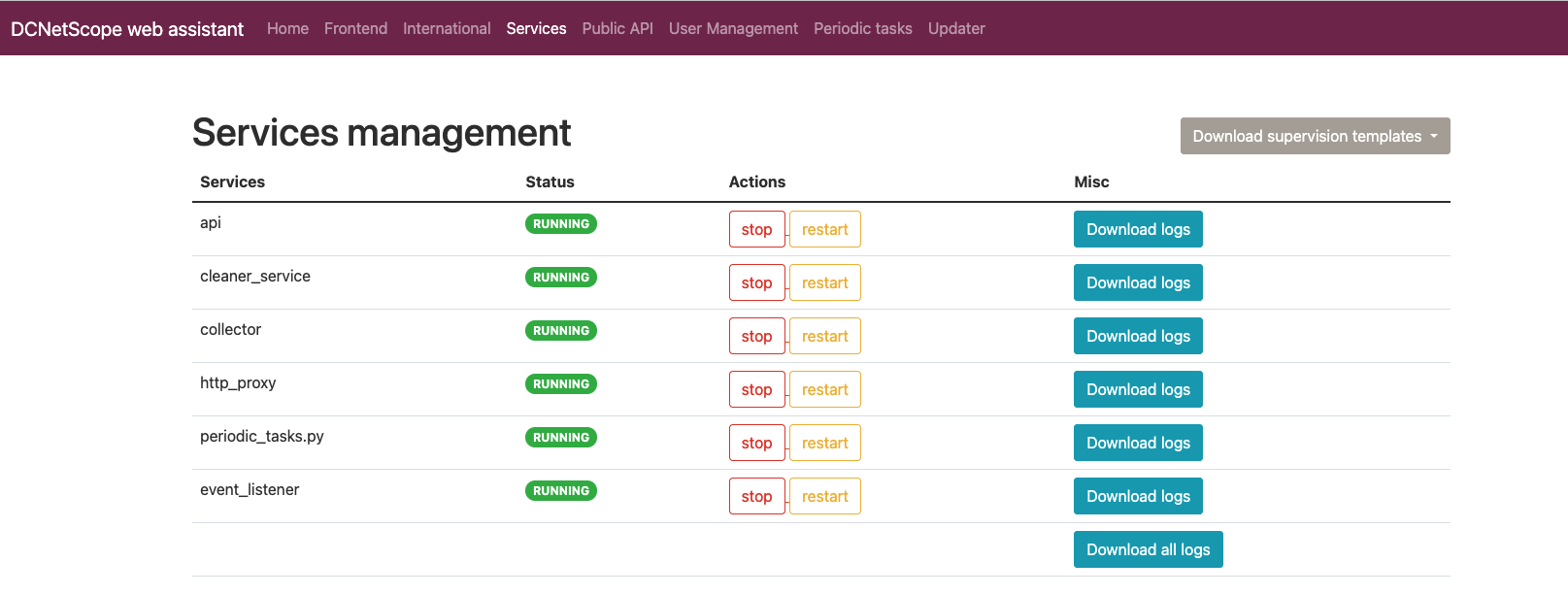
In the administration page of DC Netscope, click go to the Services section :

The page lists all services, provides information about their running state, and enables to download logs fo services :
Per service text logs
You can download a tgz archive of the log of a specific service, click on the Download logs at the right of
a service :

Full logs archive
You can download a tgz archive of the log of all service, click on the Download all logs at the bottom of
the service table :

Generate an anonymised UI data file
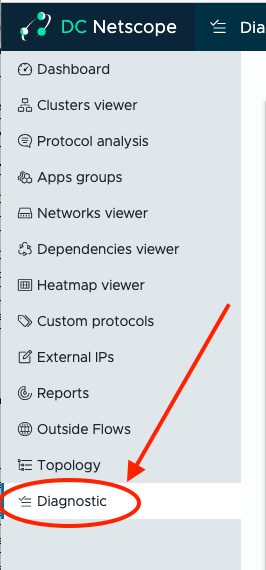
Go to the Diagnostic section in the left menu of the DC Netscope frontend :
And click on the "Download UI data" button to get an anonymised UI data file :
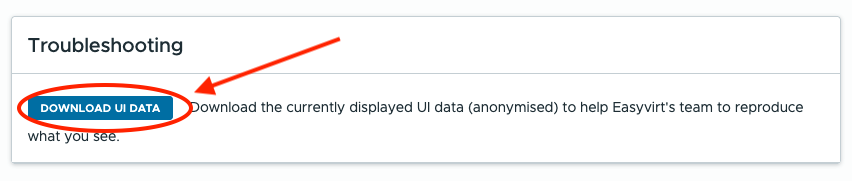
You may provide this file to the Easyvirt support to help them reproduce UI problems.
Connect to the VM
Via the console
When you deploy DC Netscope, you usually configure an account with an email and a password (on Vates, it is
admin@example.com and password). On the blue screen asking for credentials, use the account that has been configured
during the installation process.
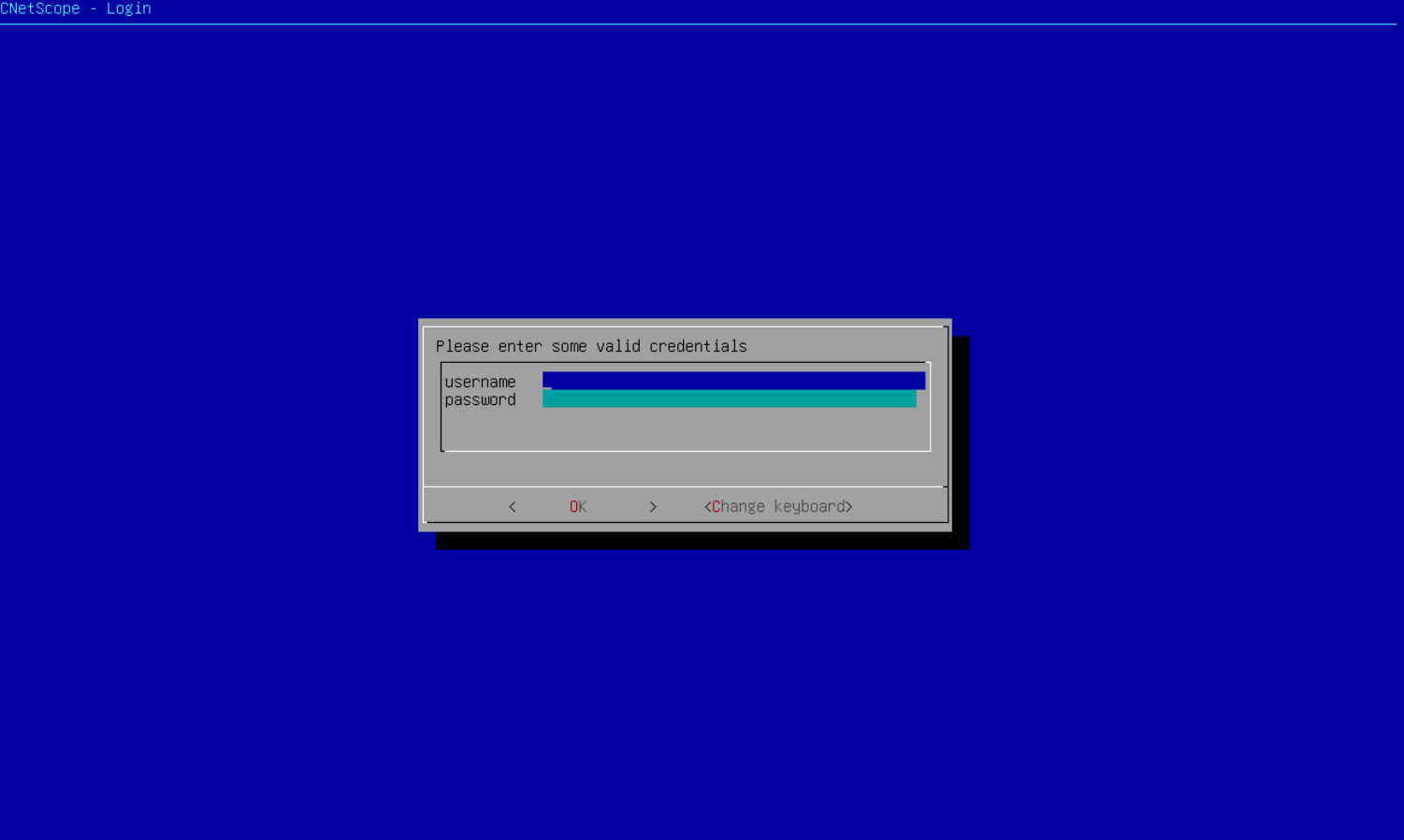
Once logged-in, you can select the open_terminal option to get a root shell on the VM.
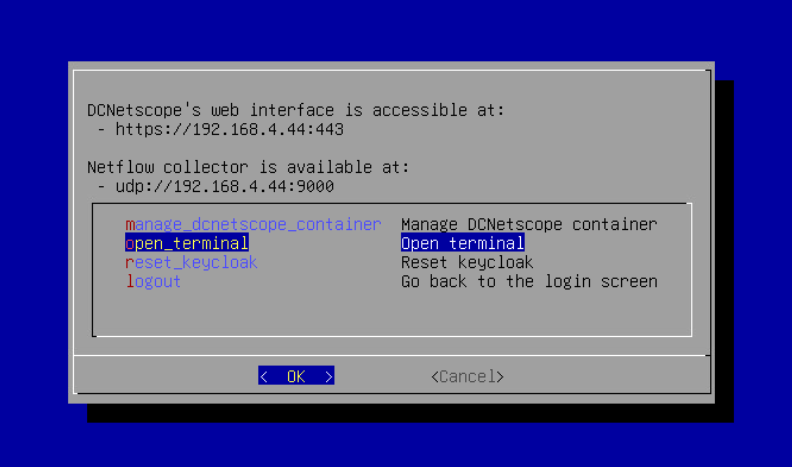
Once you finished, type exit command to go back to the blue screen.
Via SSH (putty, win scp)
When you deploy DC Netscope, you usually configure an account with an email and a password (on Vates, it is
admin@example.com and password). During the boot process of the DC Netscope VM, a script runs and ensure
that you can connect to root user of the VM, using the password of the main account.
This way, you can use an SSH client to jump to the VM, or use a file transfer tool to upload or download files.
Connect to the Docker container
From the console
When you deploy DC Netscope, you usually configure an account with an email and a password (on Vates, it is
admin@example.com and password). On the blue screen asking for credentials, use the account that has been configured
during the installation process.
Once logged-in, you can select the manage_dcnetscope_container option to manage the docker container.
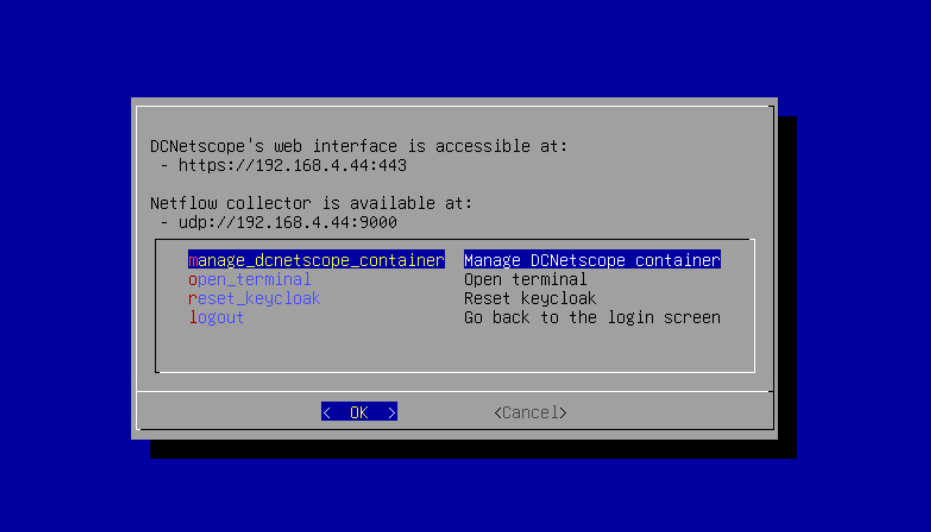
From here you have several options. One interesting option is misc > open_terminal
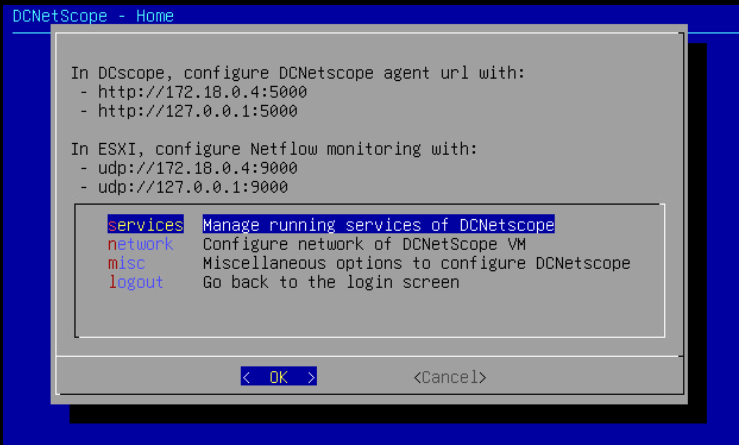
From the VM
From inside the VM, execute this command :
docker exec -ti easyvirt-dcnetscope_full-1 bash
Frequent problems
A red banner appears at the top of the DC Netscope app
Sometimes, a red banner appears at the top of the DC Netscope application :

It means that DC Netscope has encountered an error while trying to fetch data from the API. It may be caused by :
- an error in the UI code of DC Netscope : check the browser logs by inspecting the web page.
- an error in the API of DC Netscope: check the logs of the API service.
- a stopped API services: check if the API service is running.
- a network issue between the browser and the DC Netscope API: check if you can access the administration page. And ask the user to ping the IP (or domain) of DC Netscope.
- a disk full: check the section for disk full.
I need to restart a service of DC Netscope
It is possible to restart a service of DC Netscope via the Administration page : manage services .
It is also possible to use the command line from inside the container, via the supervisorctl command.
Use supervisorctl status all to list all services :
root@dcnetscope:~# supervisorctl status all
api                              RUNNING   pid 2372007, uptime 3 days, 23:32:52
cleaner_service                  RUNNING   pid 2372008, uptime 3 days, 23:32:52
collector                        RUNNING   pid 1157748, uptime 0:01:04
collector2                       RUNNING   pid 1153045, uptime 0:09:30
duckdb-ui                        RUNNING   pid 2372012, uptime 3 days, 23:32:52
event_listener                   RUNNING   pid 981523, uptime 5:28:28
http_proxy                       RUNNING   pid 2372015, uptime 3 days, 23:32:52
periodic_tasks.py                RUNNING   pid 2372016, uptime 3 days, 23:32:52
You can use the start, stop and restart actions to restart a service :
root@dcnetscope:~# supervisorctl restart api
api: stopped
api: started
You can also use the all keyword to apply to action at all services :
root@dcnetscope:~# supervisorctl restart all
cleaner_service: stopped
collector: stopped
collector2: stopped
duckdb-ui: stopped
event_listener: stopped
http_proxy: stopped
periodic_tasks.py: stopped
api: stopped
api: started
cleaner_service: started
collector: started
collector2: started
duckdb-ui: started
event_listener: started
http_proxy: started
periodic_tasks.py: started
My credentials are not accepted, and I am sure they are correct
When you deploy DC Netscope, you usually configure an account with an email and a password (on Vates, it is
admin@example.com and password). During the boot process of the DC Netscope VM, a script runs and ensure
that you can connect to root user of the VM, using the password of the main account.
Usually, bad credentials can have several causes :
- Lost password : rebooting the VM will re-use the password provided in VAPP (vmware), cloud-init
- Disk is full : some Keycloak files may have been corrupted. The solution is to reset keycloak
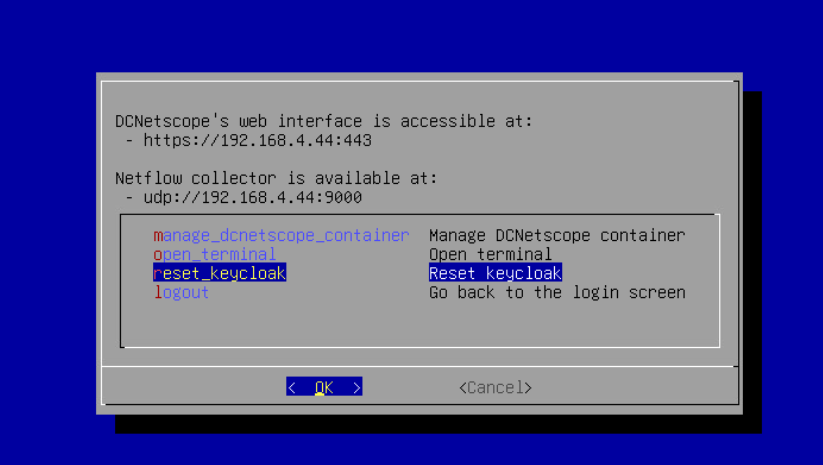
As Keycloak is easily breakable, the solution is often to reset keycloak from the console. It usually means that user
has to re-do the LDAP configuration. To reset Keycloak, use the reset_keycloak option in the console:
The storage is full, I need to clean some logs
A storage that is full can be caused by several things :
- (vm) logs of the DC Netscope VM
- (container) logs of the DC Netscope services
- (container) raw flows files
- (container) hourly flows files
- (container) hierarchical flows files
(vm) cleaning logs of the DC Netscope VM
From inside the VM, you may rotate the logs with the following command to keep 500Mb of logs :
journalctl --vacuum-size=500M
(container) cleaning logs of the DC Netscope services
To check the logs folder of the DC netscope container, run this from inside the container :
ncdu /var/log/
You may see many supervisor_*.log files, and some of them with a number at the end.
You can clean the additional files with this command :
find /var/log/ -name 'supervisor*.log.*' -delete
For the other linux logs, you may rotate the logs with the following command to keep 500Mb of logs :
journalctl --vacuum-size=500M
(container) cleaning raw flows files
From inside the container, execute the command to list the hourly files :
du -h /disk2/buffer_flows
The files from this folder should be cleaned automatically after two days.
In large infrastructure, two days may not be enough. It can be customised in the /root/netscope/netscope/bin/cleaner_service.py script,
by modifying the arguments of the function :
def _clean_old_buffer_data(older_than_days=2):
After modifying the argument, please restart the cleaner service with this command :
supervisorctl restart cleaner_service
Alternatively, it is possible manually clean these files, with the following command :
find /disk2/buffer_flows -type f -mtime +2 -delete
(container) cleaning hourly flows files
From inside the container, execute the command to list the hourly files :
ncdu /disk2/parquet_files/
Data in these files are redundant with data from hierarchical flows files (see below),
only the last 3 days are actively used to recompute the last data.
You may delete files that are older than 3 days. It may cause a problem if you need to rebuild the hierarchical flows files.
For example, if you want to destroy files that are older than one week (-mtime +7), you can use the following command :
find /disk2/parquet_files/ -mindepth 1 -mtime +7 -delete
(container) cleaning hierarchical flows files
From inside the container, execute the command :
ncdu /disk2/parquets_db/hierarchy/
In last resort, you may delete the older file in la.
Data is outdated or the last data is from several days ago
Outdated data can have several causes :
- issue with a task from
periodic tasksservice : in this case check the logs of theperiodic_tasks.pyservice. - issue with the Netflow / SFlow collector : in this case check the logs of the collectors services.
To know how to download logs of a service, check the Donwload logs section.
The update is not working
In the current version, updater only accepts files that ends with the tar.gz.asc extension. If you have already
downloaded several update files, the browser will add a number to prevent files to have the same name. Thus your
files may have names like tar.gz.asc(1) which will not be accepted by the current version of DC Netscope.
To make it work, just rename the file so that its extension is tar.gz.asc .