Apps Groups
The "Apps groups" view allows you to synthesize views by only taking into account groups of VMs that we call apps groups.
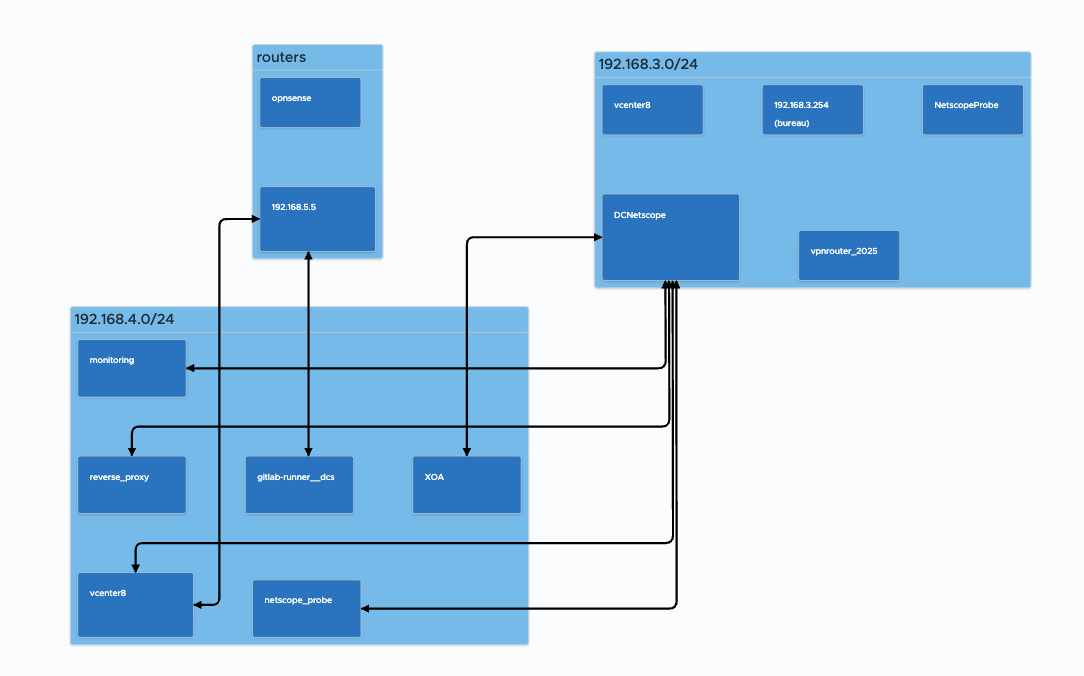
On the top of the page, there is bar with several controls that enables to select the view:

- By Name : show VMs grouped by VM names (automatic).
- By Networks : show VMs grouped by /24 Network (automatic).
- Users's appsgroups : show VMs grouped by the apps-groups configured by the user.
Only links between apps-groups are shown, flows inside apps-groups are not shown (it may change in the future).
Changing the way paths are computed
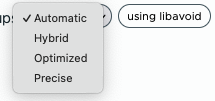
To display link between apps-groups, DC Netscope will use a routing algorith that is relevant to the amount of data
displayed. By default, the routing algorithm is automatically chosen. However, by click on the current routing mode label,
it is possible to force a choice :

Then select the mode you want to use :
Customizing the display of apps-groups
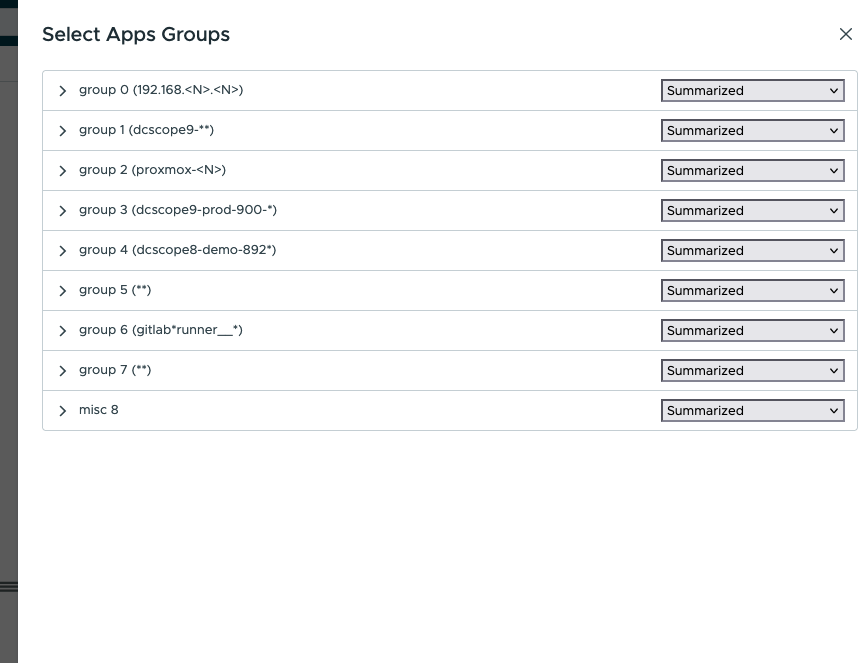
By clicking on the select Apps-Groups button, it is possible to select how every apps-groups are displayed :

All apps-groups are displayed, and it is possible to specify how members of an app-group should be displayed :
- Summarized : don't show members of the apps-groups.
- Show servers : show members that exposes a port on the network.
- Show servers and clients : show members that exposes a port on the network, and the members that requests ports outside the apps-group.
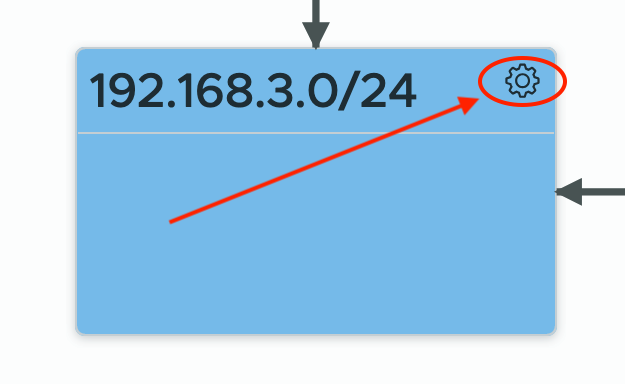
It is also possible to access the settings of an app-group by clicking on the cog shaped icon :
It is also possible to select the members that will be displayed : unfold an app-group and click on the VM you want to ignore. The When they are ignored, their boxes are not colored.

Creating and editing apps groups
In the Users's appgroups view, it is possible to define apps groups, by clicking on the edit apps groups :

which gives access to this page:
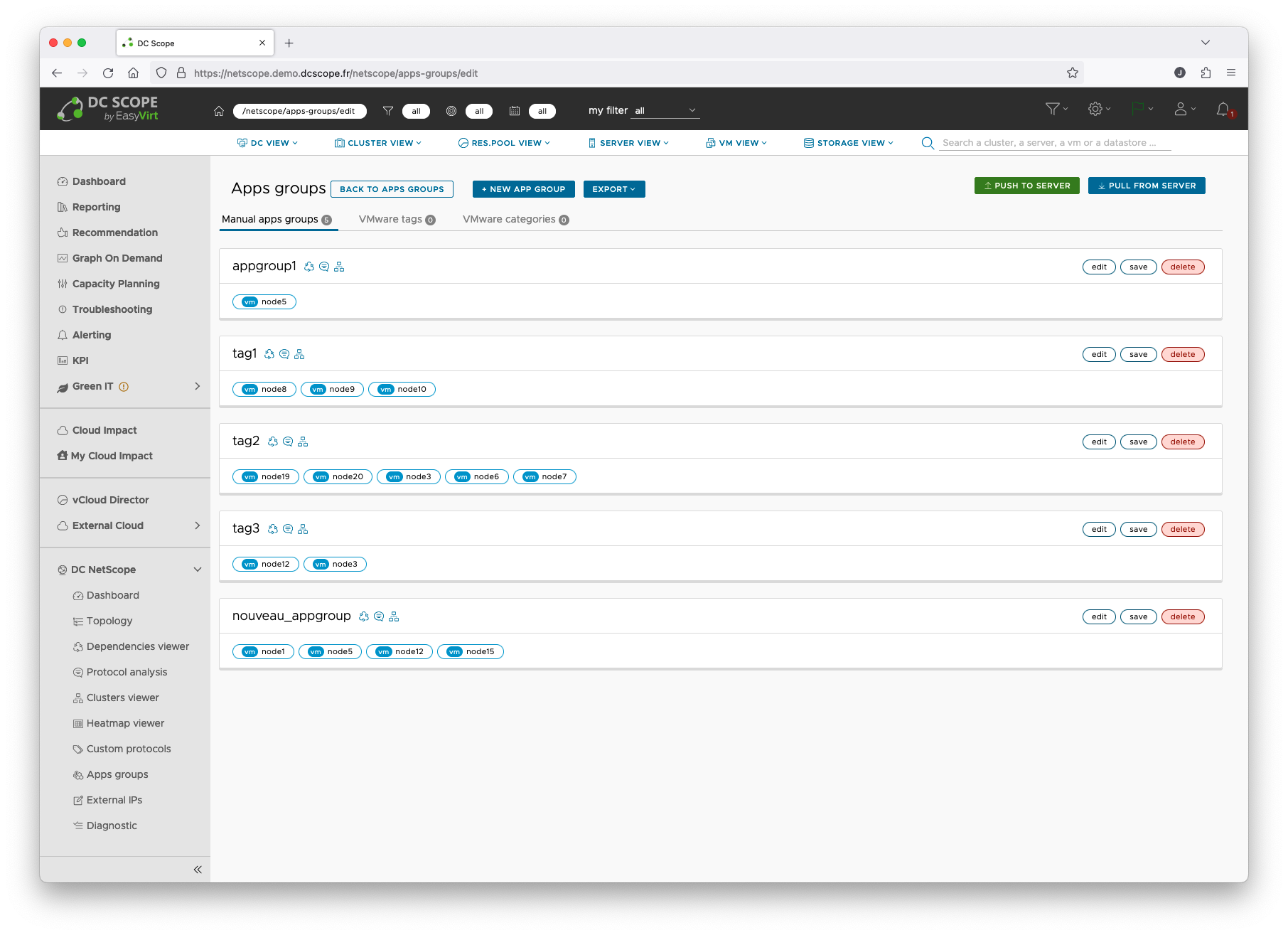
From this page you can view existing apps groups, edit or delete them, and export them in CSV format.
Note
Any change to an app group — whether creating, editing, or deleting — is first applied locally.
If you want the changes to be saved, you must click the push to server button.

If you want to discard your local changes and revert to the last saved data, you must click the pull from server button.
A- Creating an app group
Several options are available:
- create an app group manually and add resources to it manually
- import apps groups from a CSV file (see Section
C- Exporting apps groups as a CSV file) - import a VMware tag and its VMs as an app group. When the tag is updated, the app group will be updated automatically.
- import a VMware category and its tags as multiple apps groups. When the category or its tags are updated, the apps groups will be updated automatically.
1) Create an app group manually and add resources to it manually
Click the new app group button, select the Create an app group manually option, then click Finish.
The app group appears at the bottom of the list in the Manual apps groups tab, and can be edited as described in section B- Editing an app group.
2) Import apps groups from a CSV file
Click the new app group button, select the Import manual apps groups from a CSV file option, then click Next.
A new window appears with a field at the top to import a CSV file and the apps groups recognized by DC Netscope shown below.
Clicking Finish adds the apps groups to DC Netscope.
The apps groups appear at the bottom of the list in the Manual apps groups tab, and can be edited as described in section B- Editing an app group.
3) Import a VMware tag and its VMs as an app group
Click the new app group button, select the Import a Tag as a new app group option, then click Next.
A new window appears showing the vCenter tags. Select the tag to import and click Finish to import the VMware tag as an app group.
The app group appears in the VMware tags tab list and is not editable.
4) Import a VMware category and its tags as multiple apps groups
Click the new app group button, select the Import a Category as a several new apps groups option, then click Next.
A new window appears showing the vCenter tag categories. Select the category to import and click Finish to import its tags as apps groups.
The VMware category and its tags appear in the VMware categories tab list, and the tags are not editable.
B- Editing an app group
If the app group is editable, click the edit button to switch the app group into edit mode.
To exit edit mode, click the save button: changes are saved locally.
On an app group in edit mode, you can change its name or add resources to it, as shown in the following video:
Once you have finished making changes, click the Push to server button to send your changes to DC Netscope:
C- Exporting apps groups as a CSV file
Apps groups can be exported as CSV files via the menu accessed through the export button:
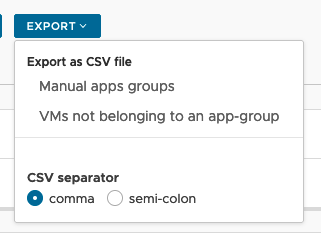
First, choose which CSV separator you want. comma is convenient if you are analyzing the data with non-Microsoft tools. If you are using Microsoft tools, the semi-colon separator is more appropriate, as it requires fewer import steps.
Once the separator is chosen, click on Manual apps groups or VMs not belonging to an app-group.