Install on Nutanix AHV
Beta
The support of Nutanix is in beta.
Before you start
You need:
- the DC Netscope OVA, downloaded from easyvirt.com,
- a Prism account DC Netscope will read the inventory with, and create the IPFIX export with,
- an IP address for DC Netscope, or a DHCP network,
- these network openings:
| Flow | From | To | Port |
|---|---|---|---|
| Web interface | Your users | DC Netscope | 443/tcp |
| Inventory and IPFIX setup | DC Netscope | Prism | 9440/tcp |
| IPFIX | Nutanix cluster | DC Netscope | 11000/udp |
To confirm
The rights the Prism account needs: reading the inventory is not enough, as DC Netscope creates the IPFIX export on the cluster itself.
Upload the OVA to Prism Central
-
In Prism Central, open
Compute>OVAsand clickUpload OVA.
-
Keep
OVA Fileas the source, select the AHV cluster that will run DC Netscope, give the OVA a name (DCNetscopehere), choose the DC Netscope OVA file and clickUpload. The checksum is optional.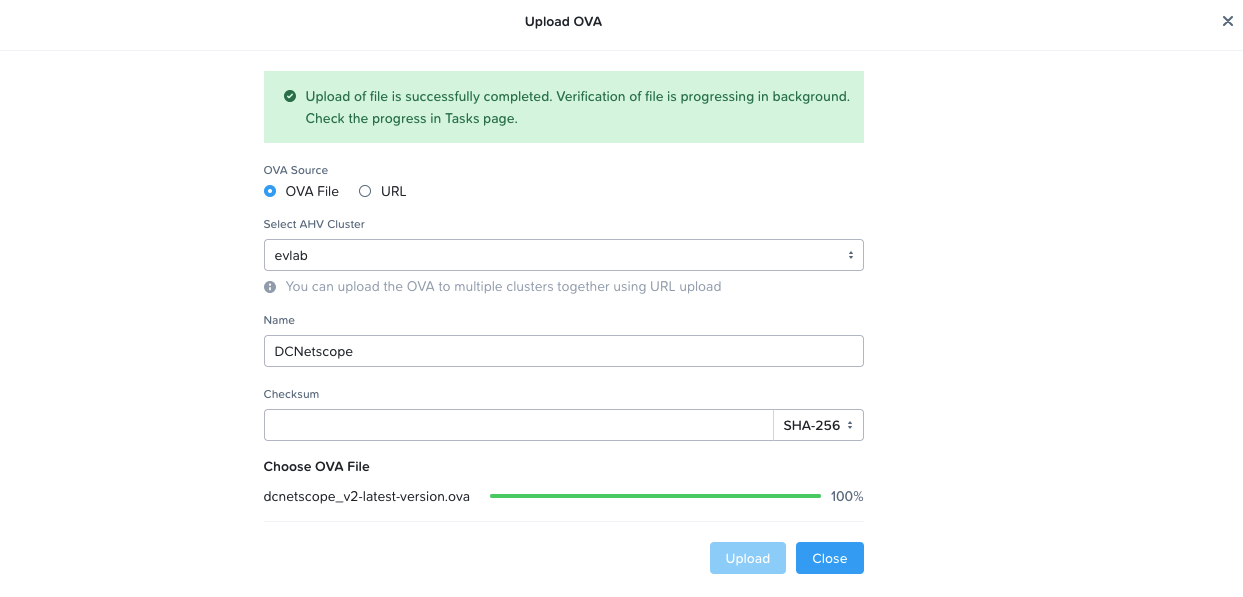
The upload takes a while:
Continue in Backgroundcloses the window without stopping it.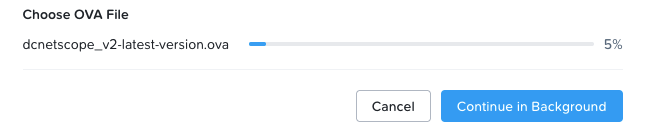
-
Once uploaded, Prism Central checks the file. Follow it in the tasks (top right): wait for
OVA validateto reach 100% before going on.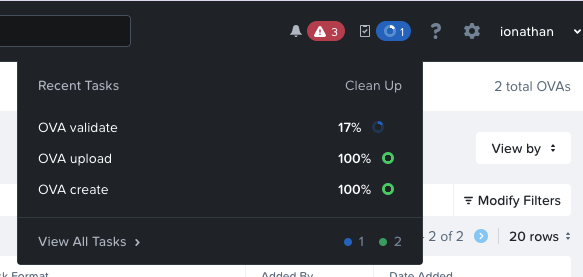
Deploy the virtual machine
-
In
Compute>OVAs, select the OVA you uploaded, thenActions>Deploy as VM.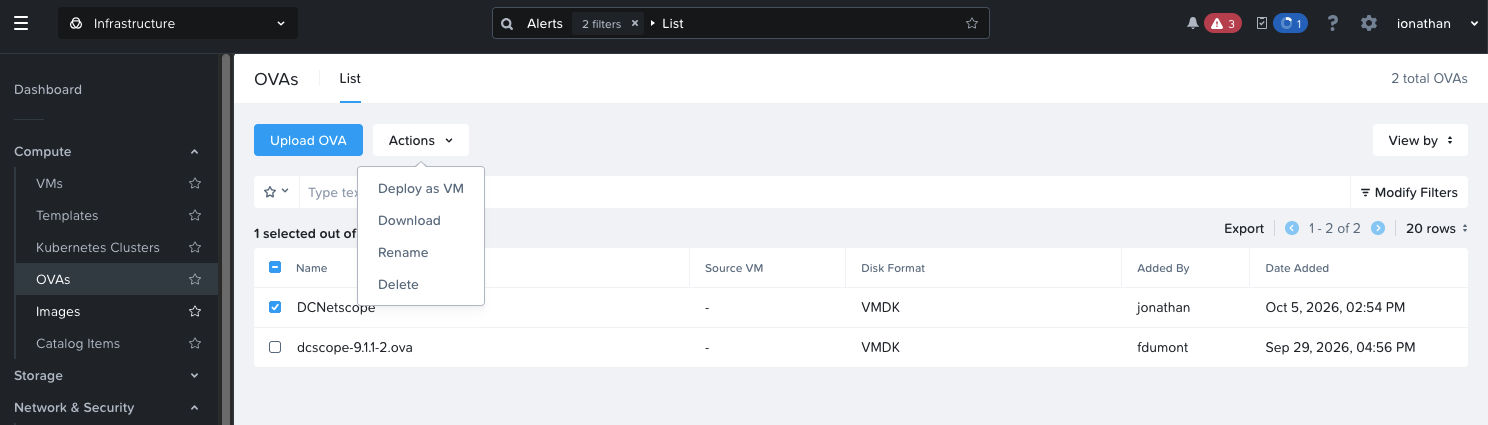
-
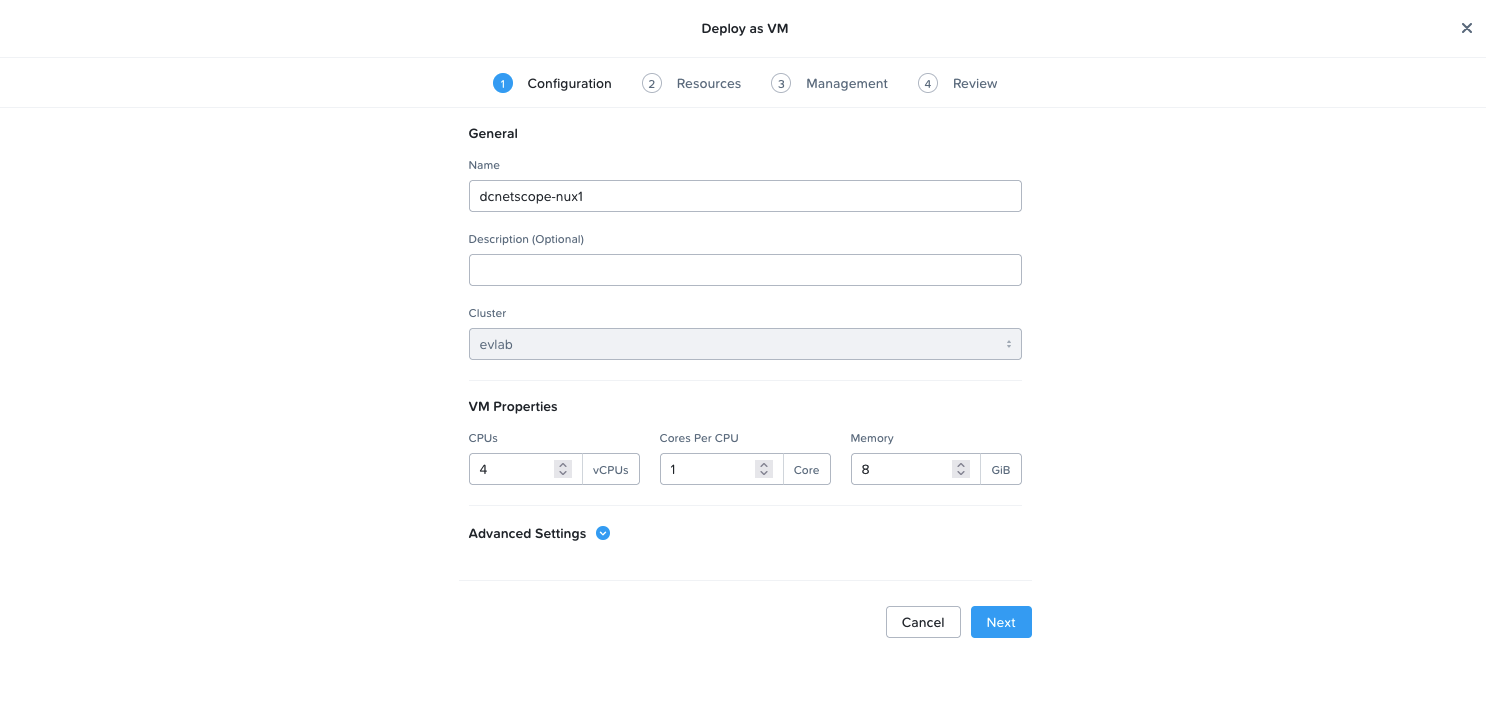
Configuration: name the virtual machine, and give it its CPUs and memory, for instance 4 vCPUs and 8 GiB.
-
Resources:
-
in
Boot Configuration, chooseLegacy BIOS Mode, with the default boot order,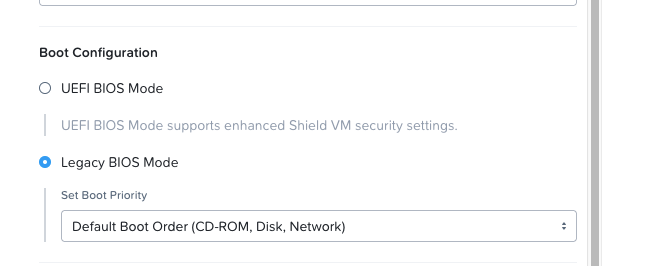
-
in
Network, the OVA may come with a network interface already, shown with errors: the OVA is built for VMware, and Nutanix can only partly read its network settings. Delete this interface, then clickAttach to Subnetto create a new one, on the subnet DC Netscope will be reached on and will receive the flows on.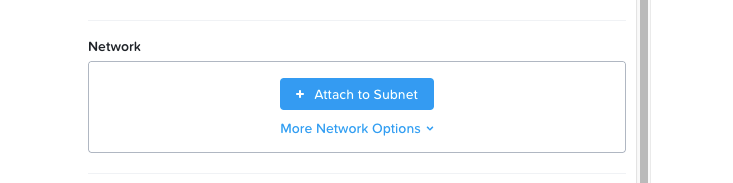
-
-
Management: in
Guest Customization, chooseCloud-init (Linux)as the script type andCustom Scriptas the configuration method, and paste the settings of DC Netscope inStartup Script:{ "email": "admin@example.com", "os_password": "a-strong-password", "ip_mode": "static", "static_ip": "192.168.1.50", "static_netmask": "255.255.255.0", "static_gateway": "192.168.1.1", "dns_ip": "192.168.1.1" }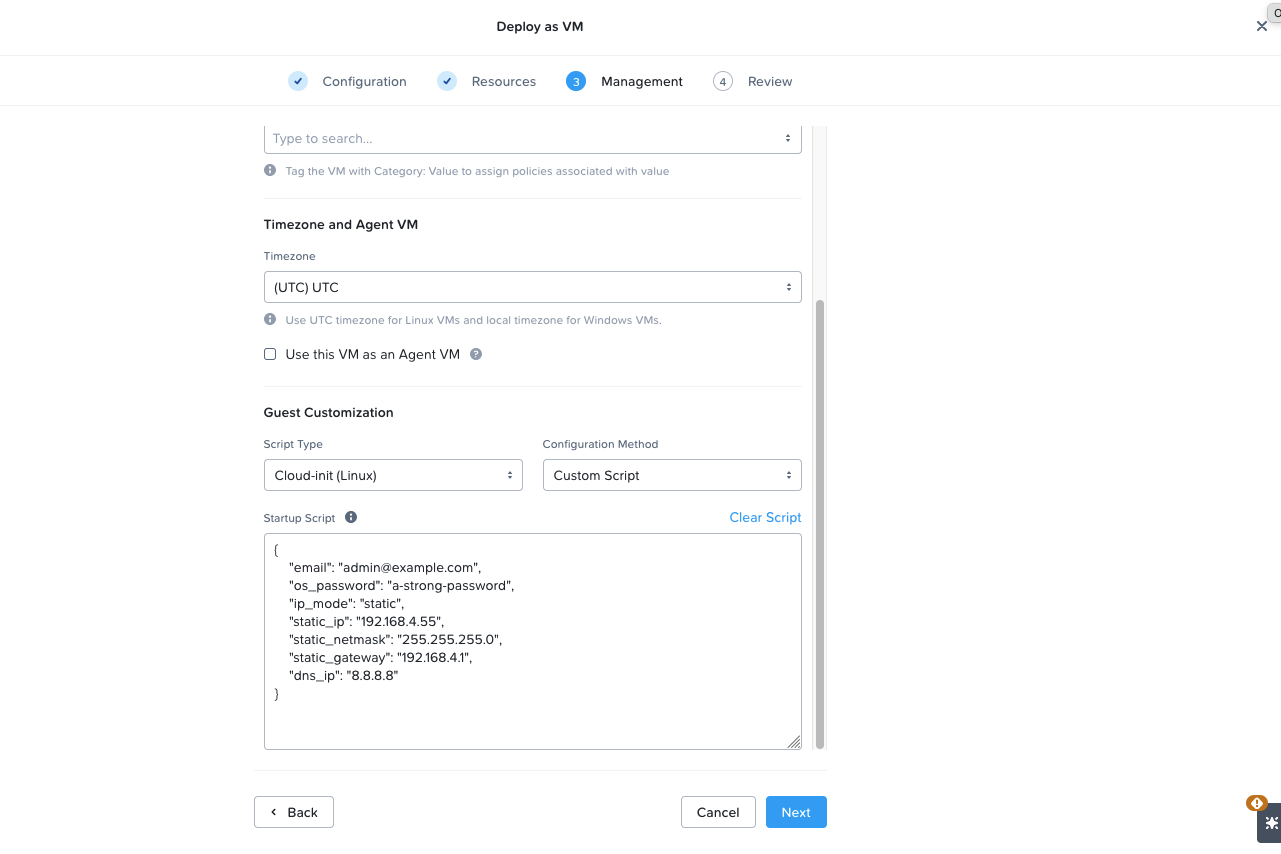
emailandos_passwordcreate the first administrator of DC Netscope. The password is also the one of therootaccount of the virtual machine.ip_modeisdhcp,static, orcloud-initto let cloud-init configure the network itself. Thestatic_*fields are ignored indhcpmode.
See Appliance settings for all the settings.
-
Review: check the settings and create the virtual machine.
Power on the virtual machine. After a few minutes, its console shows the address of DC Netscope: open
https://<DC Netscope address> in your browser and log in with the account you defined.
Changing the settings later
Write the same settings in YAML in /etc/dcnetscope.yml from the console of the virtual machine, and reboot it:
see the manual configuration.
To confirm
The sizing to recommend: 4 vCPUs and 8 GiB are the values of the screenshots.
Connect Prism
-
Open the administration interface, and go to the
Servicestab.
-
In
Connected infrastructures, chooseNutanix (beta), type the address of Prism (DC Netscope uses the port9440unless you write another one, as inprism.example.com:9440), the user and the password, and clickAdd a new connector. -
Check that the status of the Nutanix connection is green.
Send the flows with IPFIX
Nutanix exports the flows of the virtual machines in IPFIX. DC Netscope creates this export on the cluster for you.
-
Start an IPFIX collector in DC Netscope. In the configuration of the administration interface, set
Nutanix IPFIX Collector workers countto1or more.
-
Create the export. Back in the
Servicestab, the Nutanix connection shows its exporters: none at first.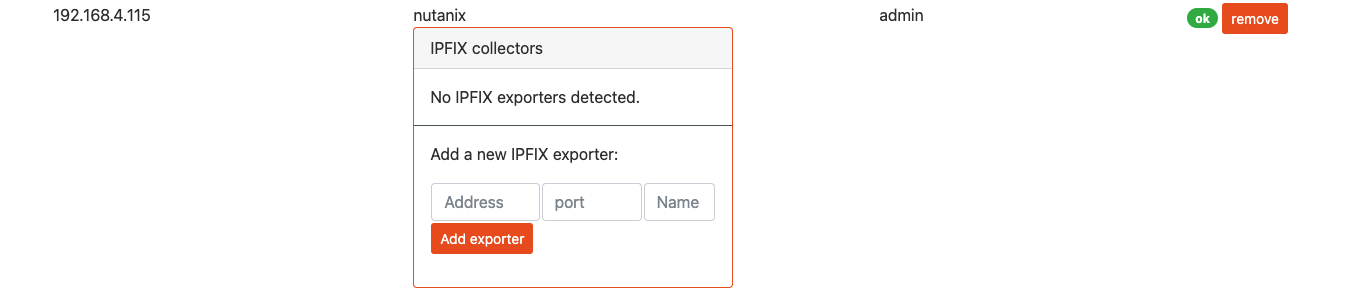
Type the address of DC Netscope and the port of its IPFIX collector,
11000, then clickAdd exporter.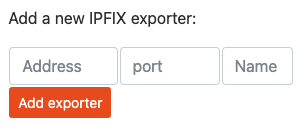
-
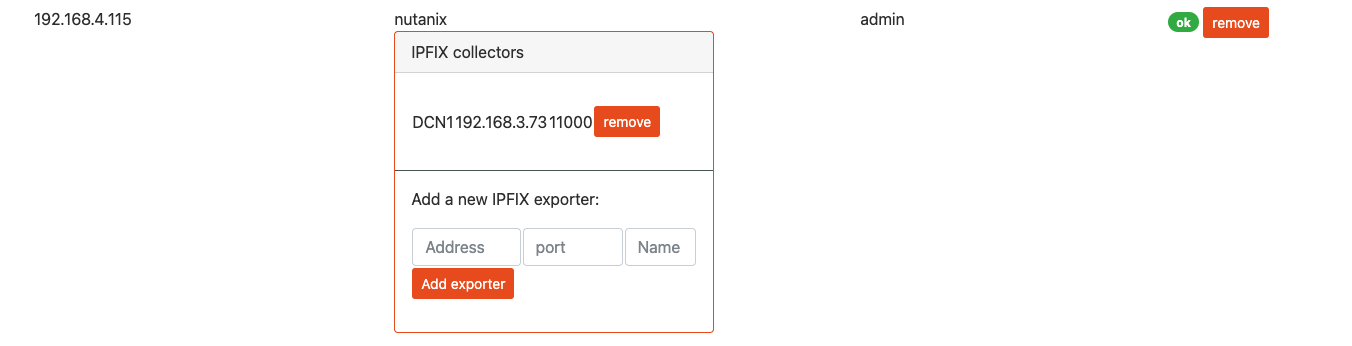
After a few seconds, the exporter is listed: Nutanix now sends its flows to DC Netscope.
Check that the flows arrive
Open the Dashboard. Within a few minutes, the collect summary shows the traffic received from Nutanix, and the flows of your virtual machines appear with their names.

Nothing shows up? Check that 11000/udp is open from the cluster to DC Netscope, that the exporter is still listed in
the Services tab, and have a look at the troubleshooting page.
Next steps
- Activate your license: a 15 days trial license is active from the installation.
- Manage the users, or connect your Active Directory.
- Group your applications to read the flows between them.